Why bokeh works
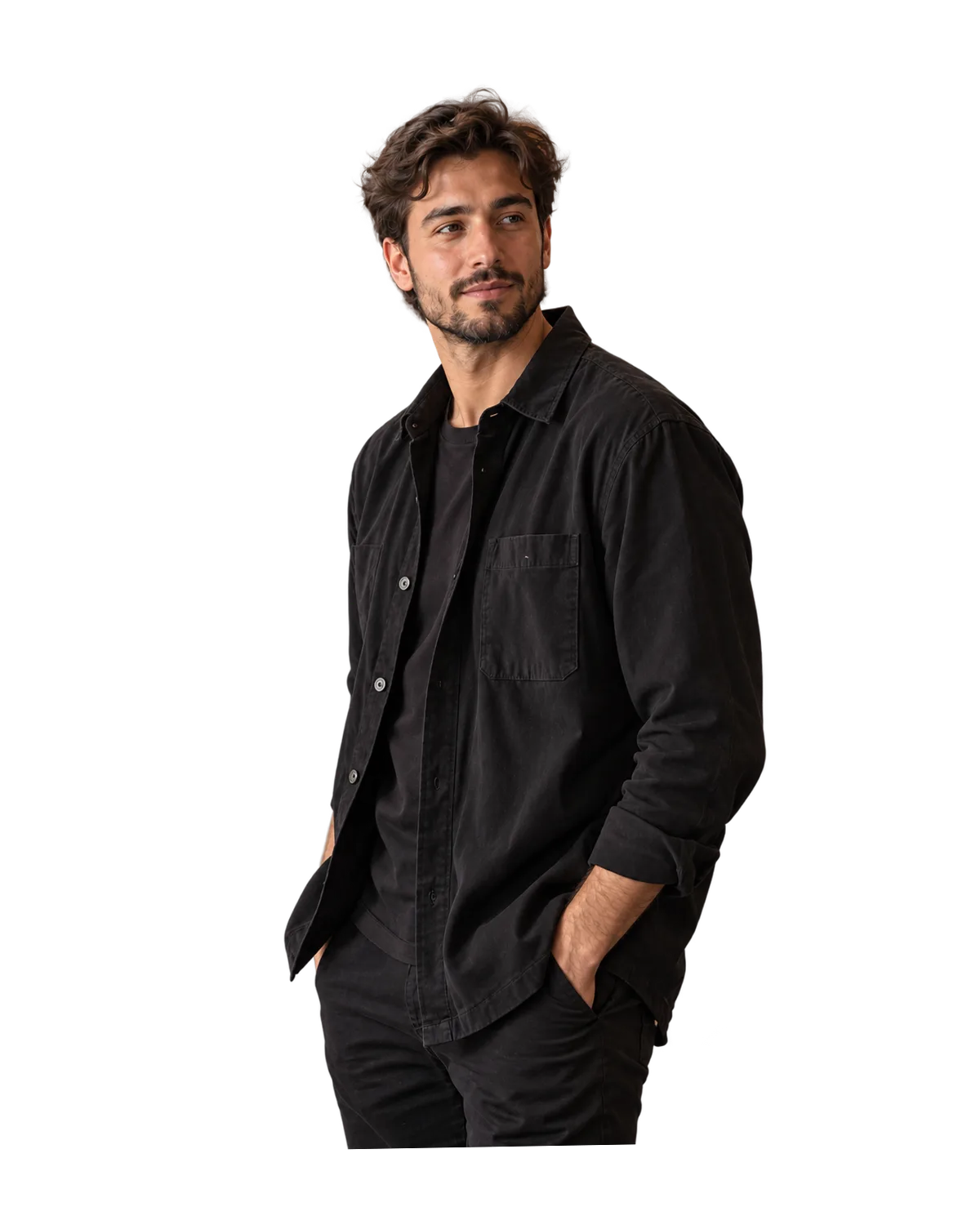
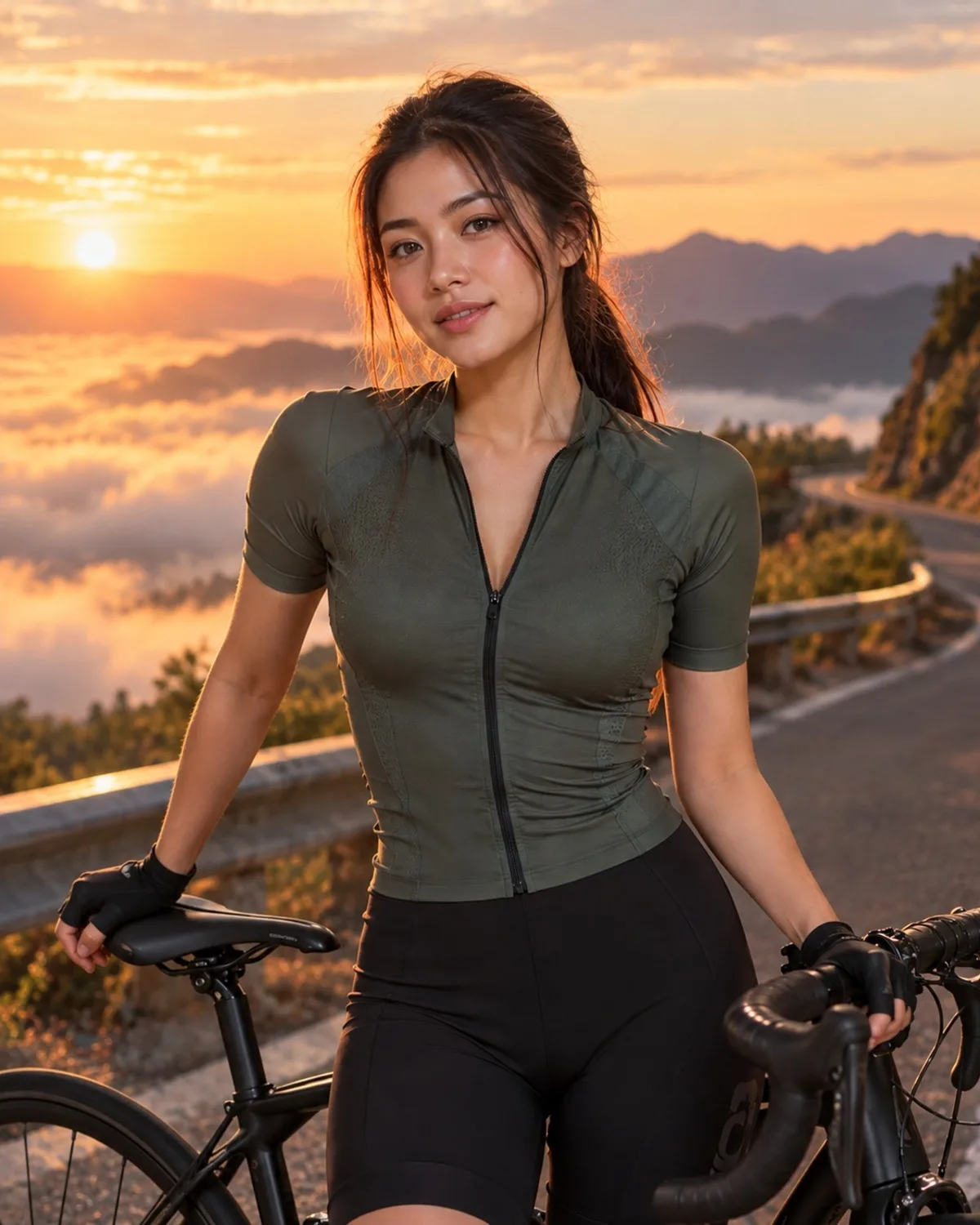
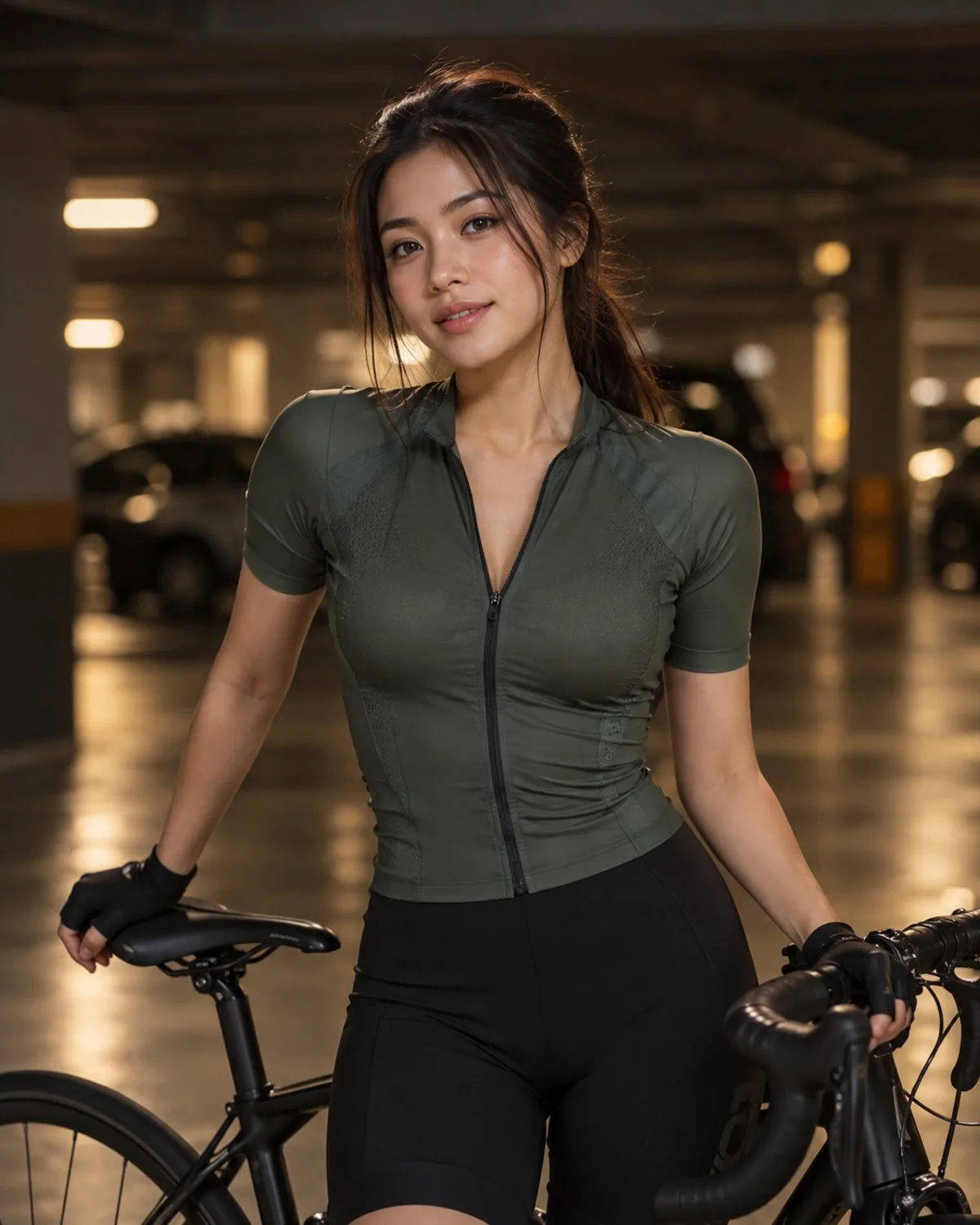
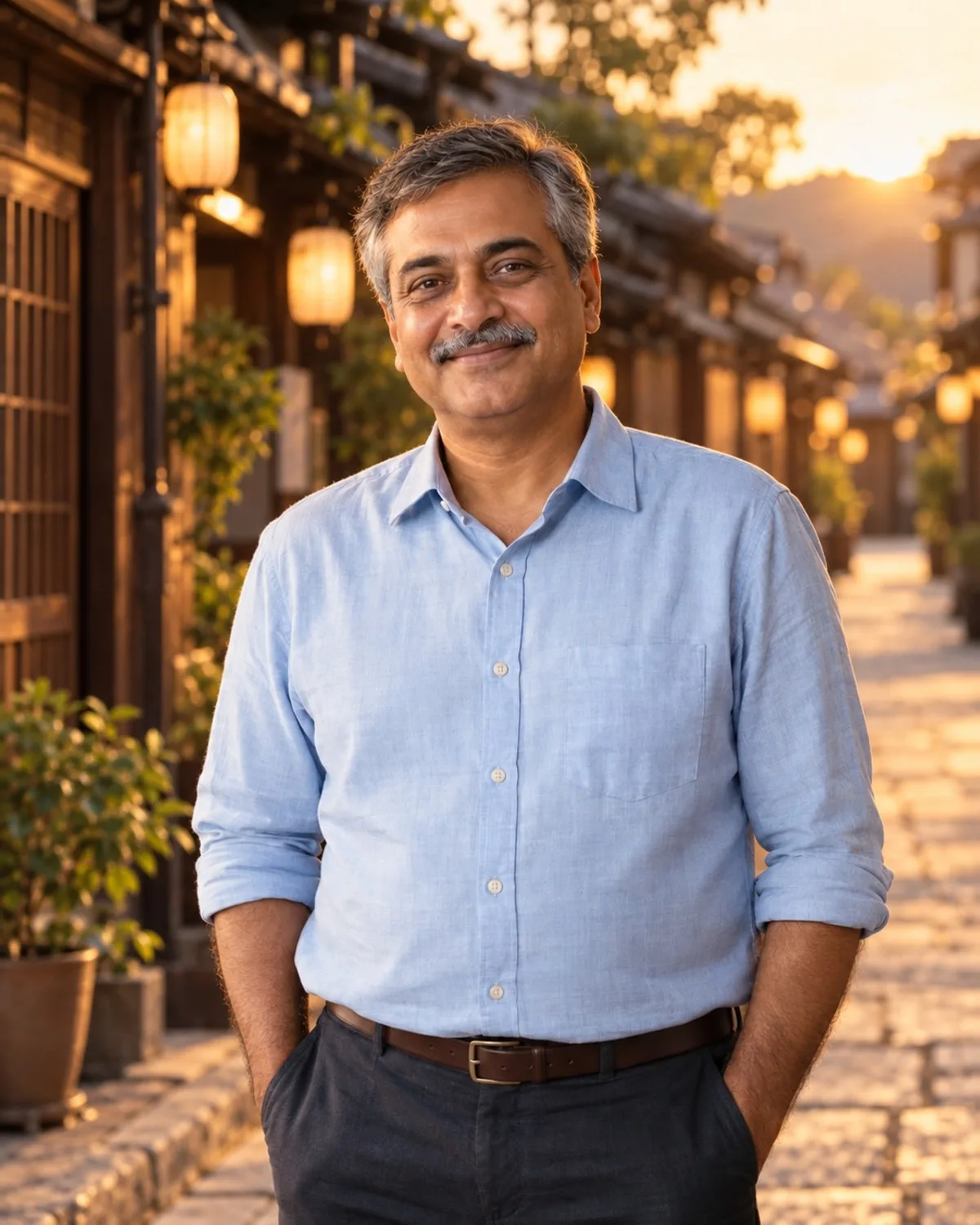
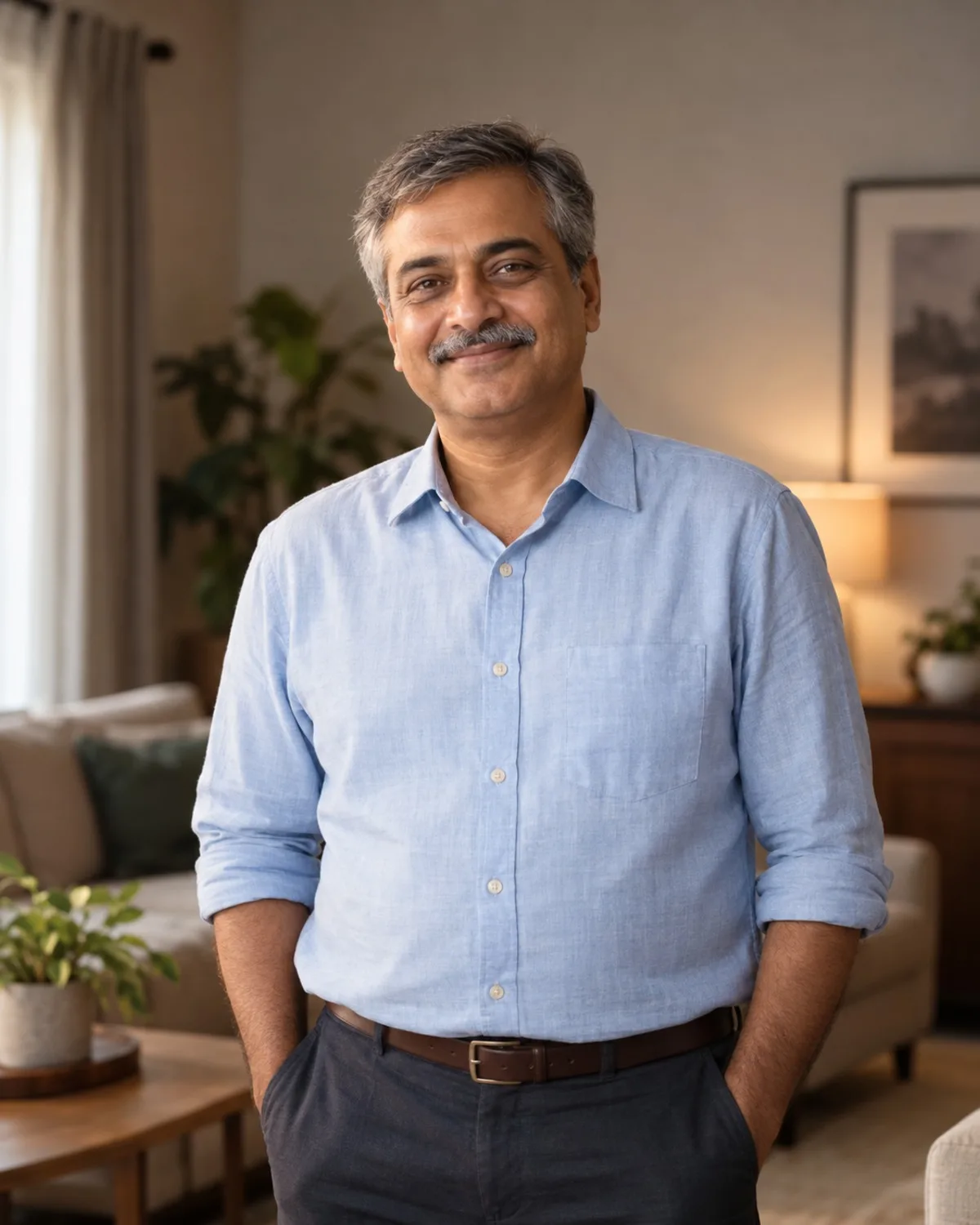
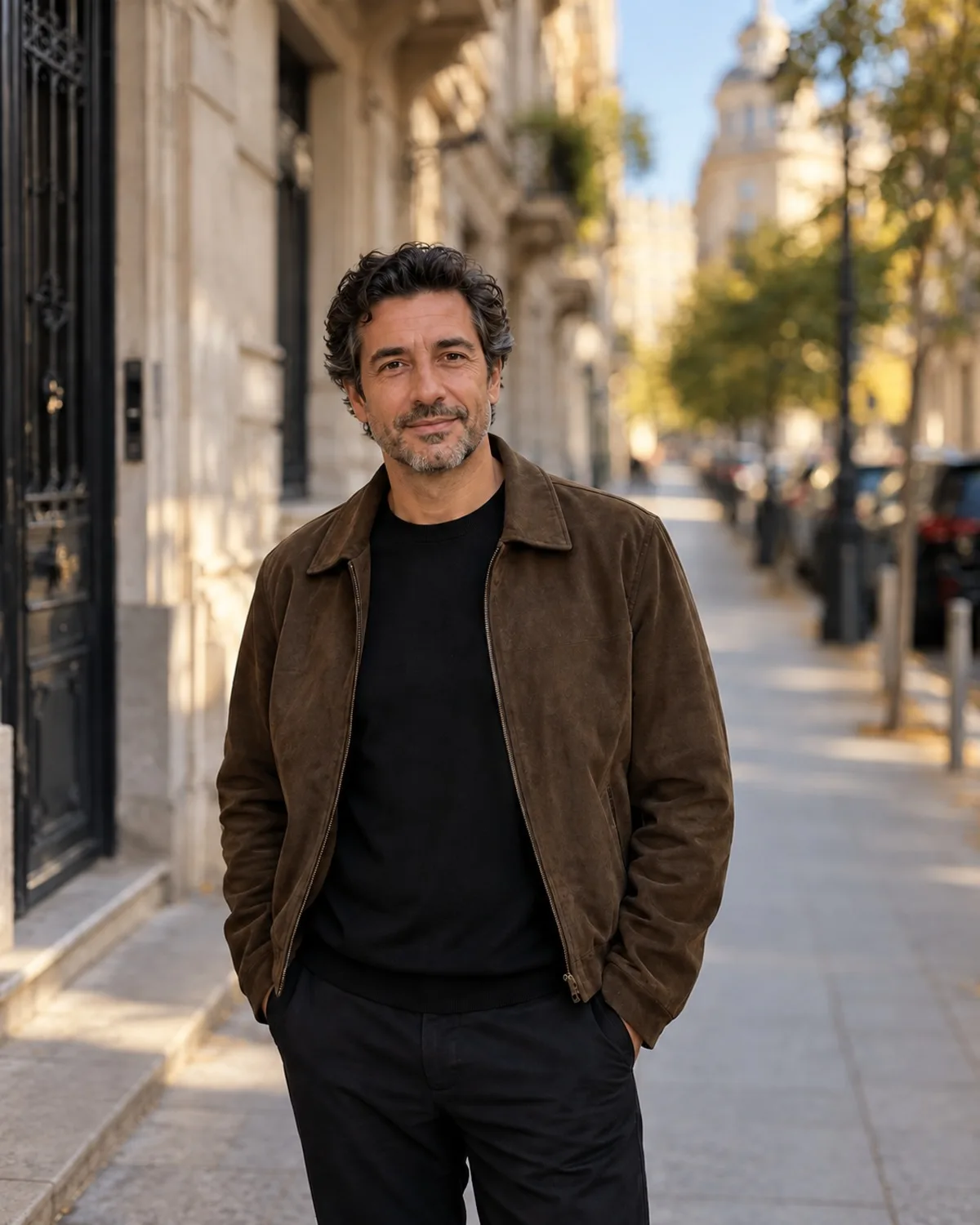
Fast portrait lenses can only focus on a thin slice of the scene, so anything closer or further away falls into soft blur, and points of light become soft discs. Our eyes read that as depth and as a signal of where to look. AI Bokeh Effect recreates the look after the fact by estimating the distance of each part of the scene and blurring it progressively.
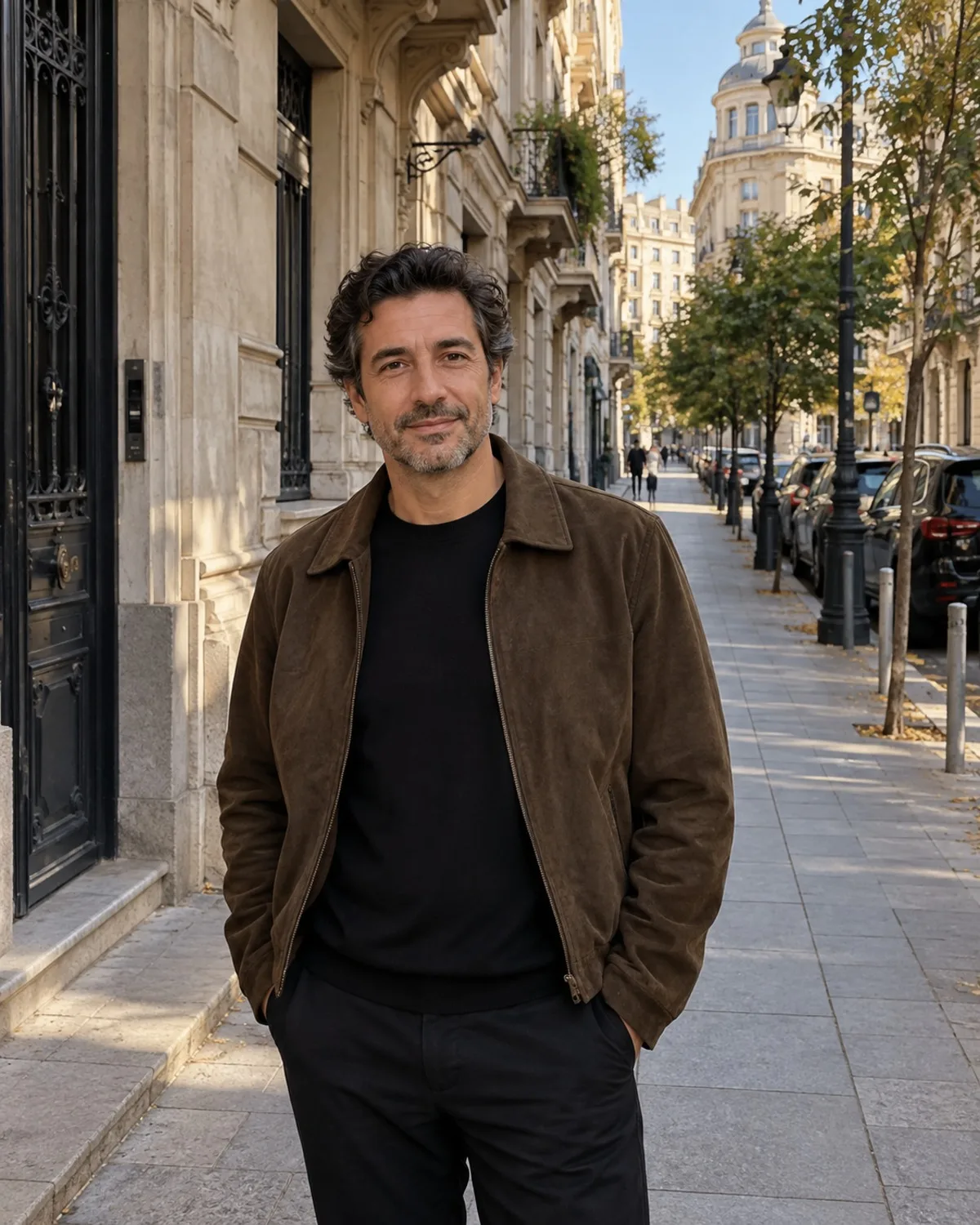
The result keeps your real location, which is what separates it from replacing the background: the place is still recognisable, just quieter.
Photos that benefit most
Bokeh is most convincing when there is real distance between the subject and the background, such as a person in a park with trees well behind them or a street that stretches away. Photos taken against a wall right behind the subject have little depth to blur, so the change will be subtle.
Lights in the background, from string lights, windows or street lamps, turn into the round highlights people associate with expensive lenses, so evening and indoor shots with small light sources are especially rewarding.
Honest limits
The trickiest areas are those where foreground and background mix: fly-away hair, the gap between an arm and the body, or a fence in front of the subject. These usually come out well, but check them when you zoom in. Objects at the same distance as the subject, like a friend standing next to you, stay sharp, just as they would with a real lens.
The tool does not change your subject, so it will not fix a photo where the subject itself is out of focus; use Unblur & Sharpen for that first.
Related tools
To swap the background for a different one, use Background Replacement. To remove a distracting person instead of blurring them, Object Removal is more precise. For product photos, bokeh can draw attention to an item on a busy table.
Want a stronger effect on a photo with little depth? Try it on a version where you stand further from the background next time you shoot; even a few steps forward from a wall gives the blur much more to work with. And because the effect follows distance, it looks most natural on photos taken at eye level rather than from directly above.