Smart Editing
Smart AI fixes for the photos you already have
Most photos are not ruined, just flawed: a stranger in the corner, missed focus, a dark room, a creased print or a frame that does not fit a story. The editing tools fix one specific problem each and leave the rest of the picture alone, so the result still looks like the moment you captured rather than a new image.
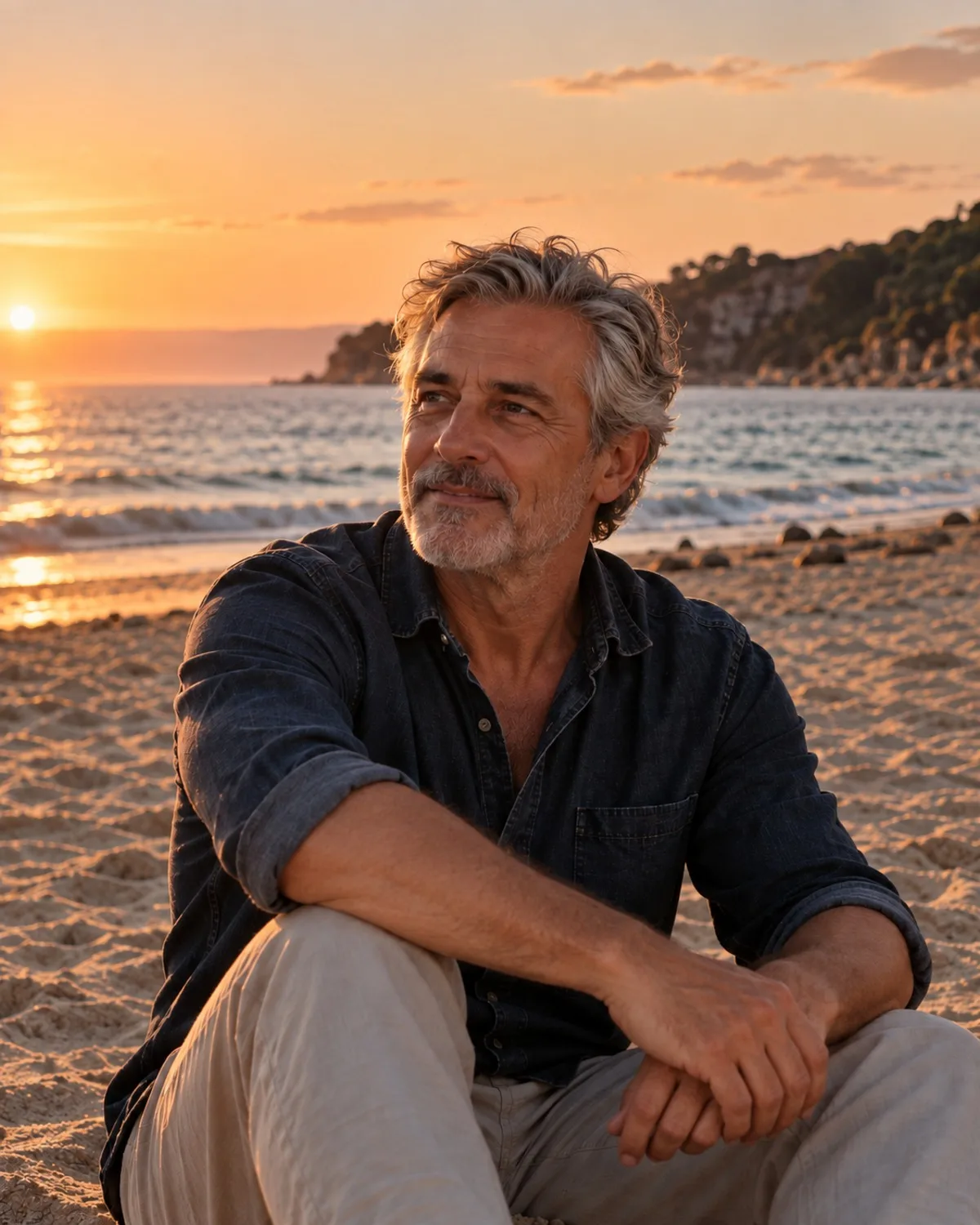
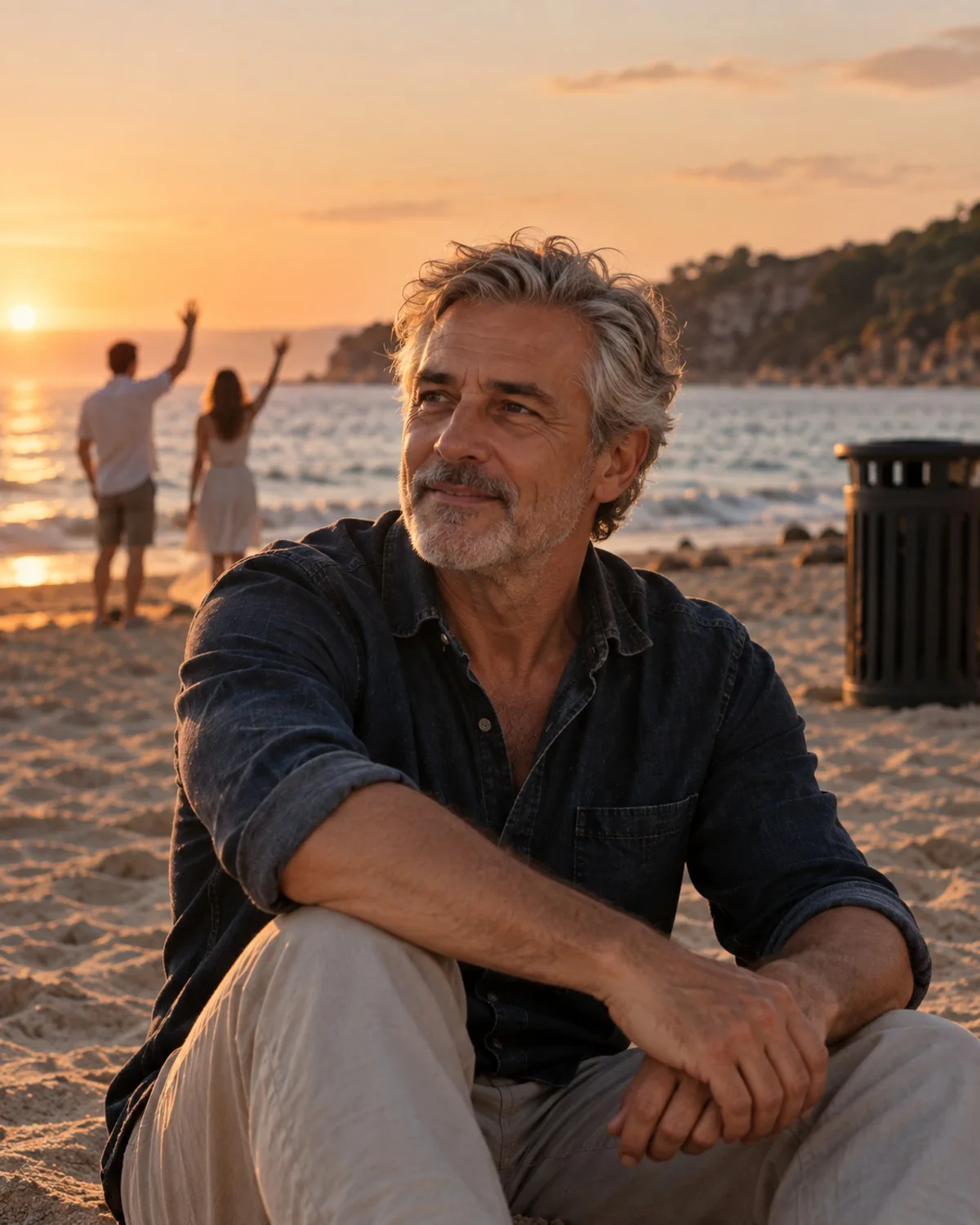
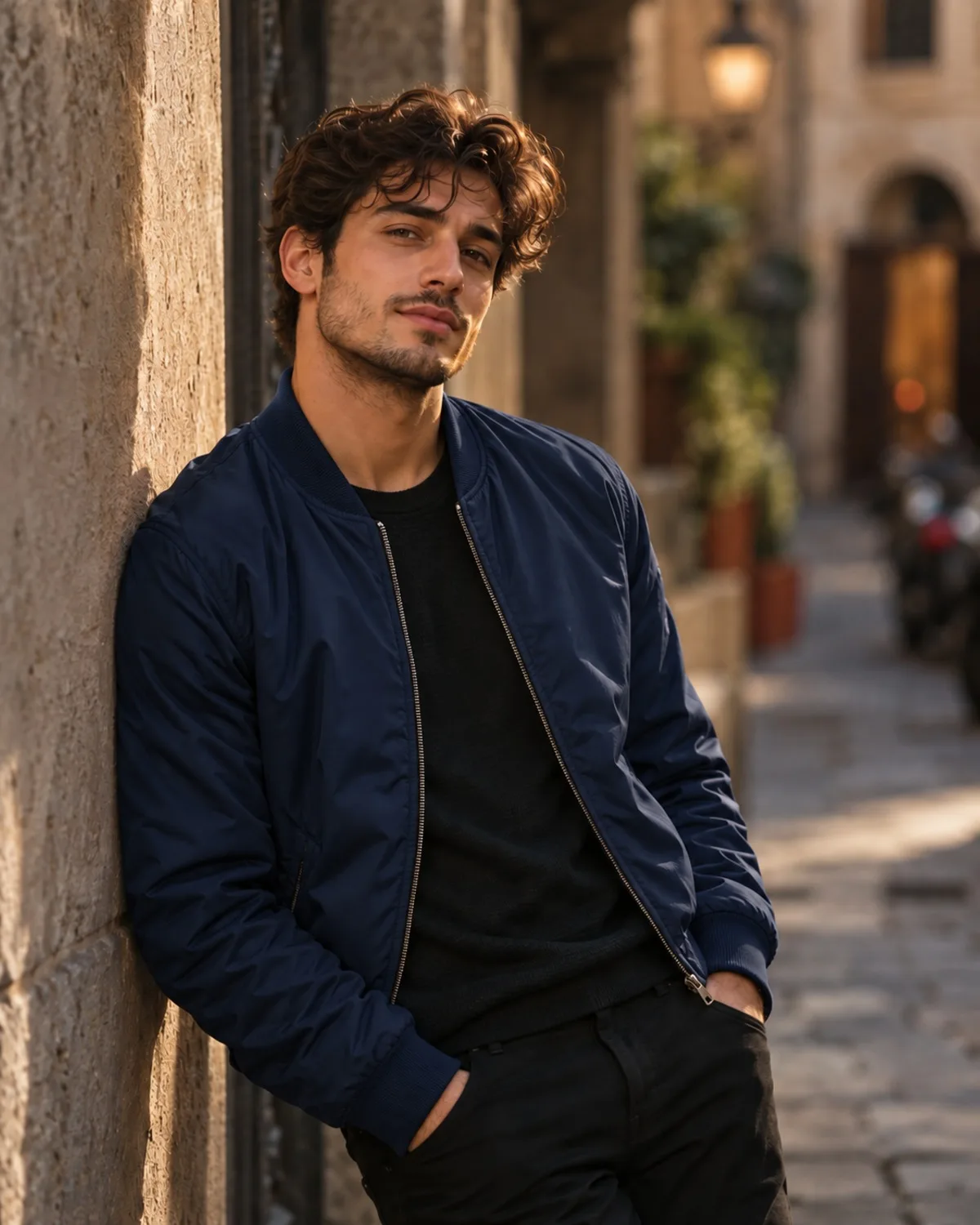
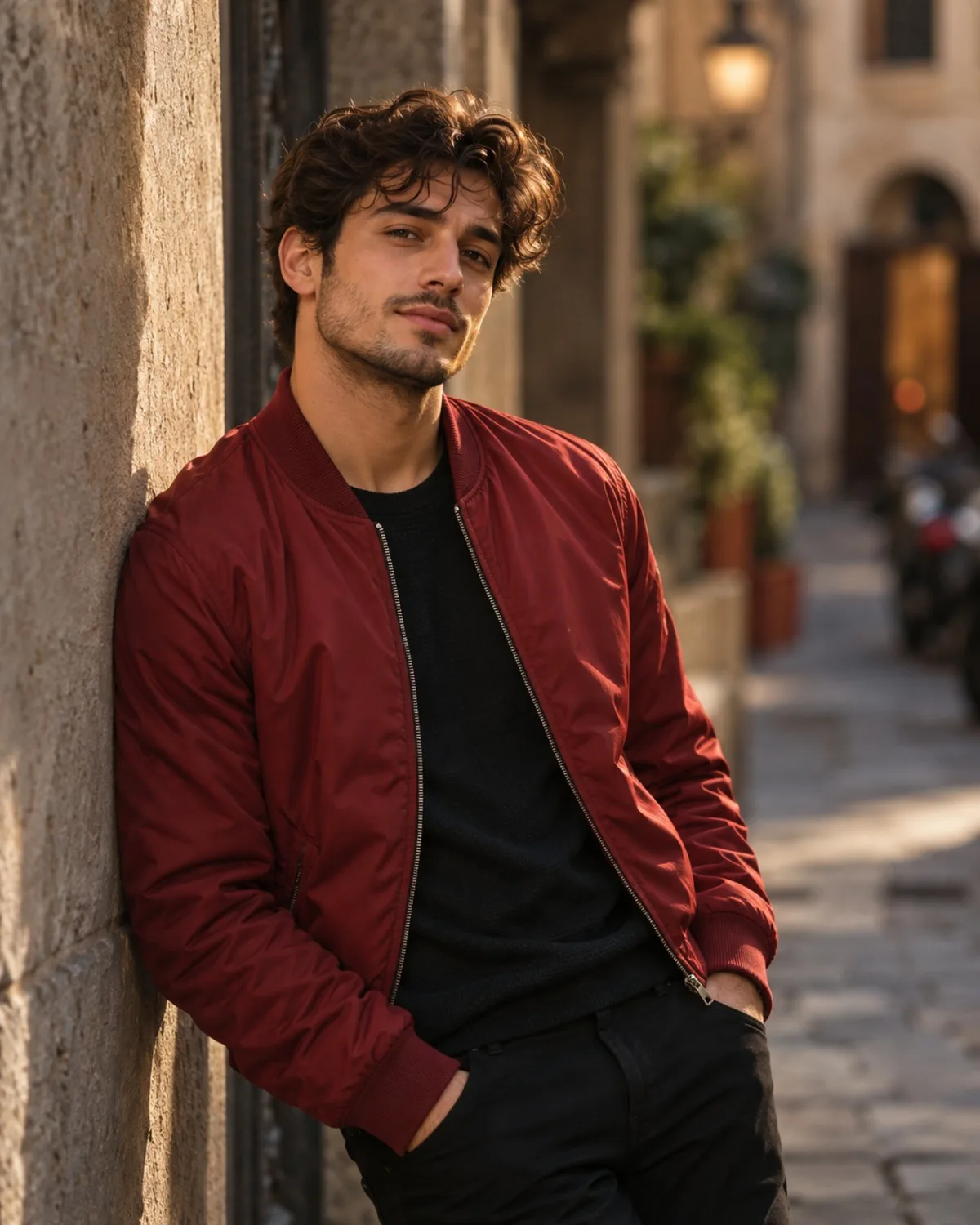
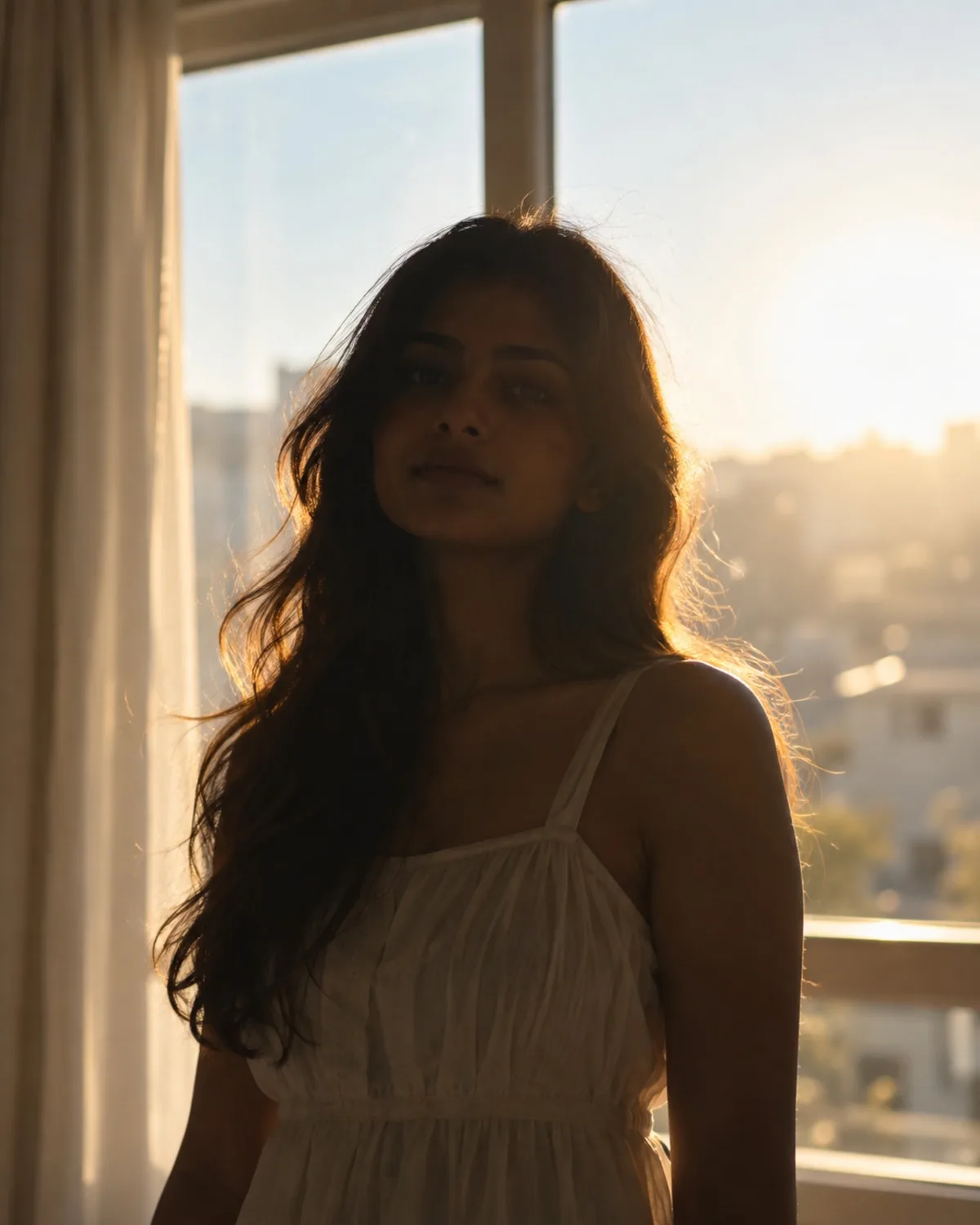
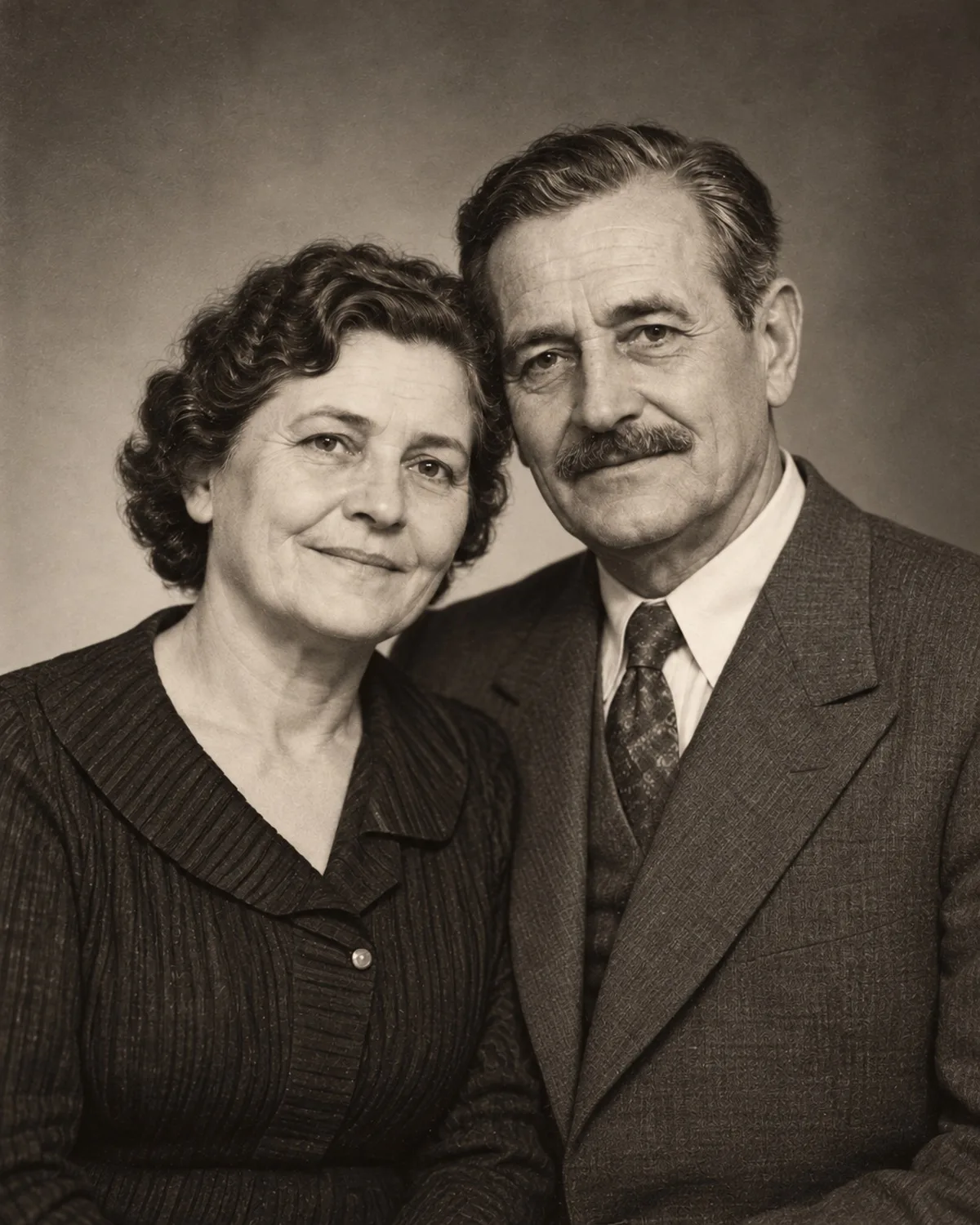
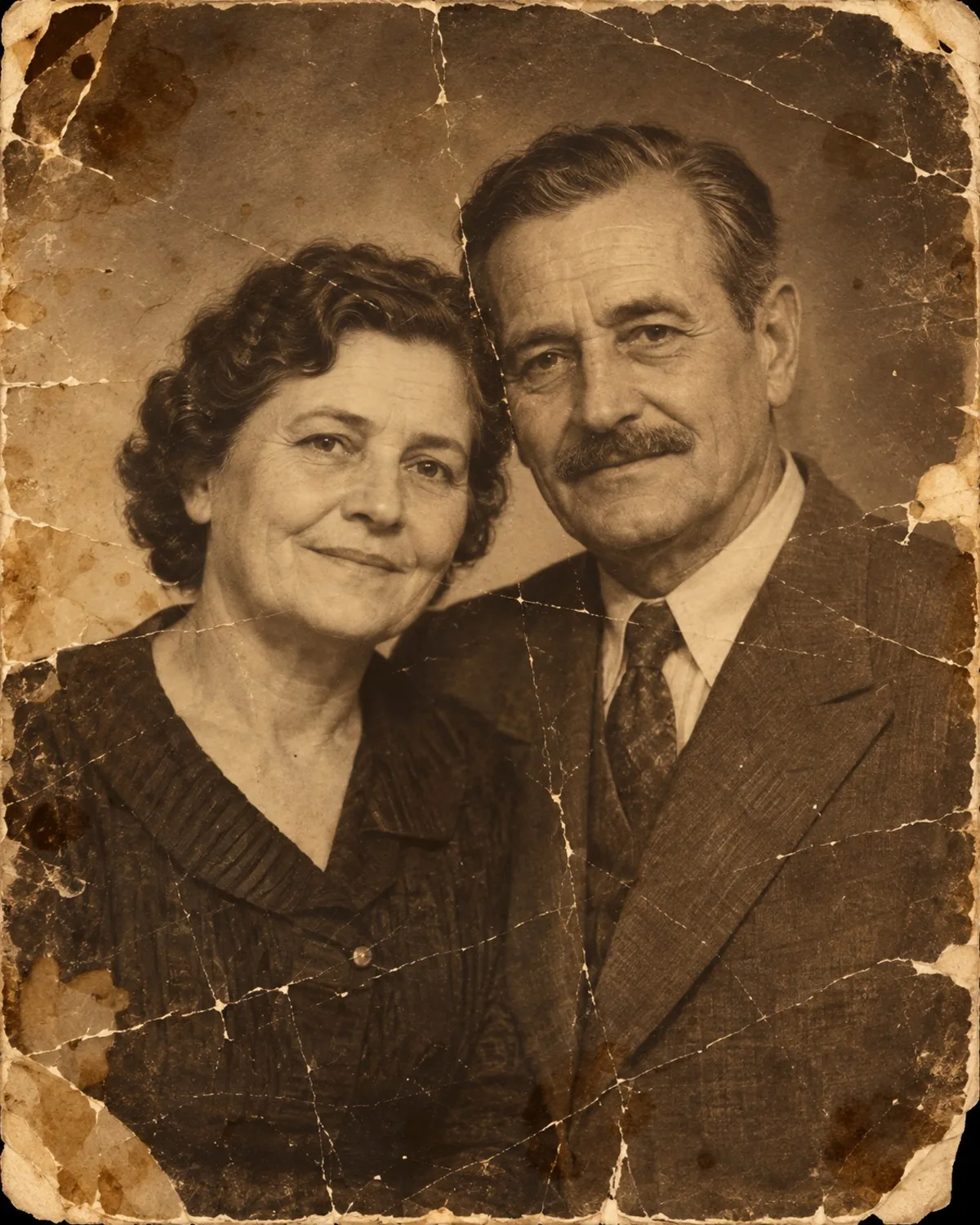
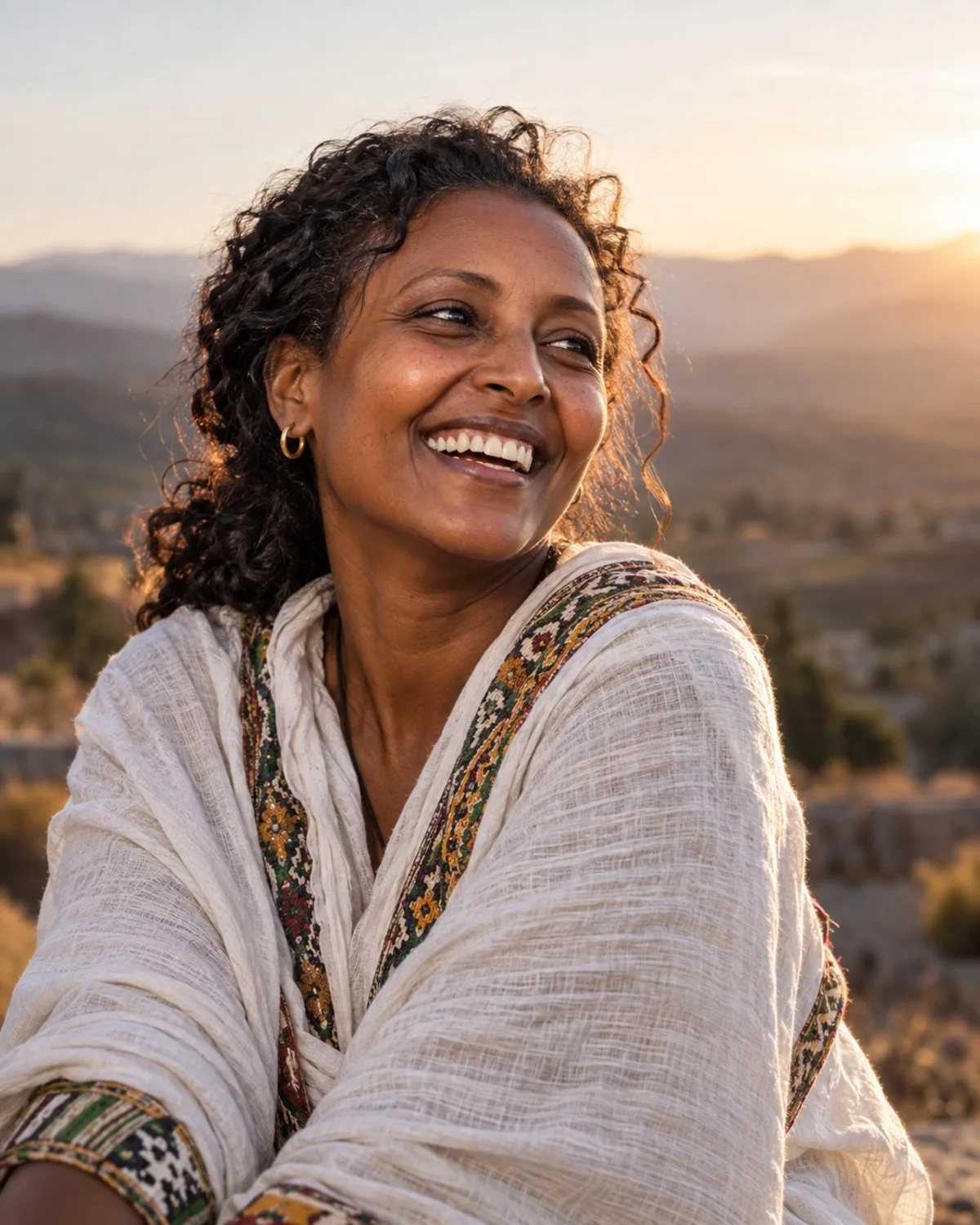
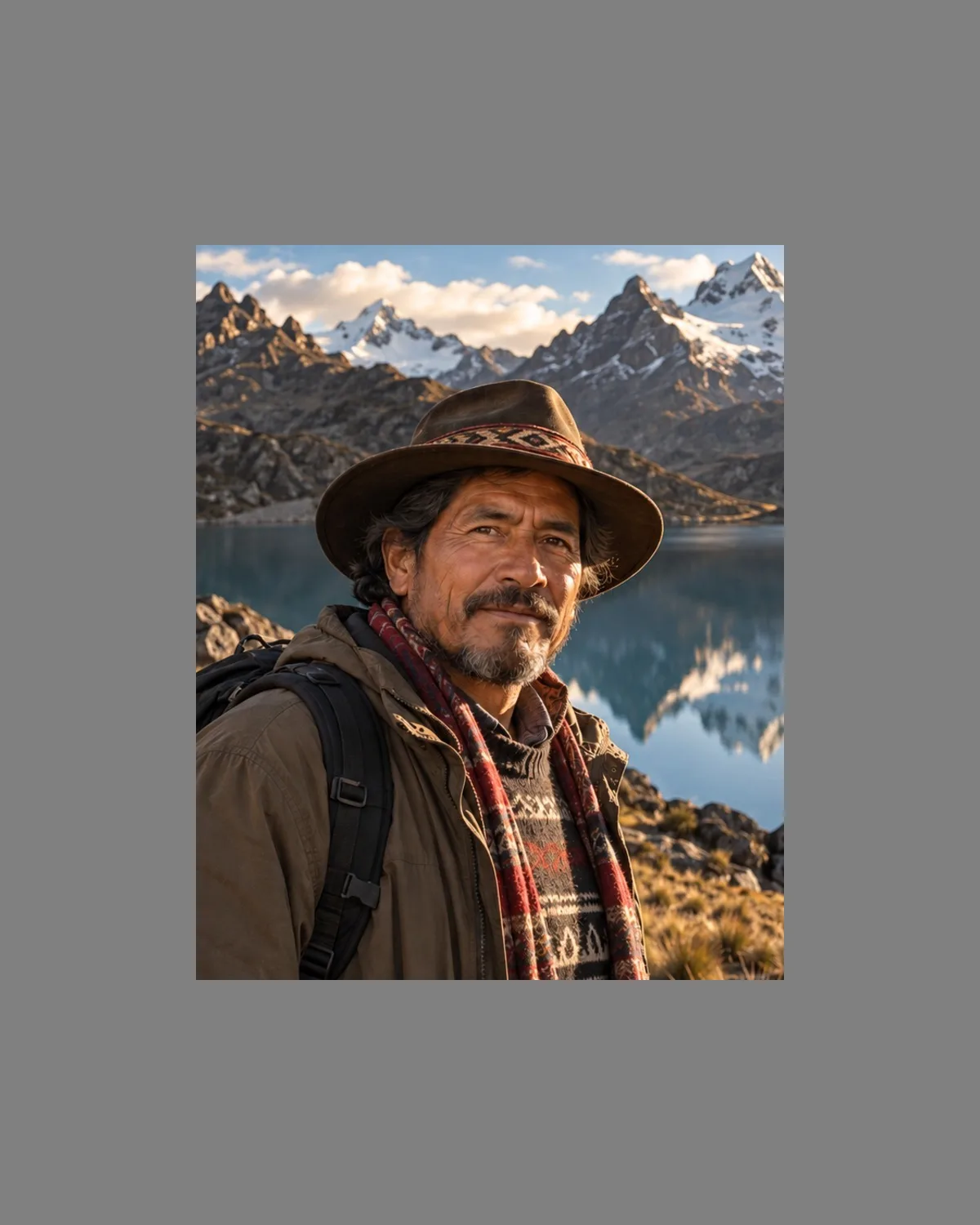
Start by naming the problem. Something you want gone calls for Object Removal; something in the wrong colour calls for Object Recoloring. Soft or shaky photos need Unblur & Sharpen, while small or heavily compressed images need AI Photo Upscale 4K. Underexposed, backlit or yellow-tinted shots go to Lighting & Shadow Fix, and scratched or faded prints to Old Photo Restoration. AI Expand extends the scene when the aspect ratio is wrong. If a photo has several problems, fix the content first, light second and resolution last: repair or erase, then correct exposure, then sharpen, and upscale at the very end so the finished version is the one that gets enlarged.
7 tools in Smart Editing



Frequently asked questions
Try it on your own photo
Open any tool without an account. You only sign in when you generate, and new accounts get 3 free credits.