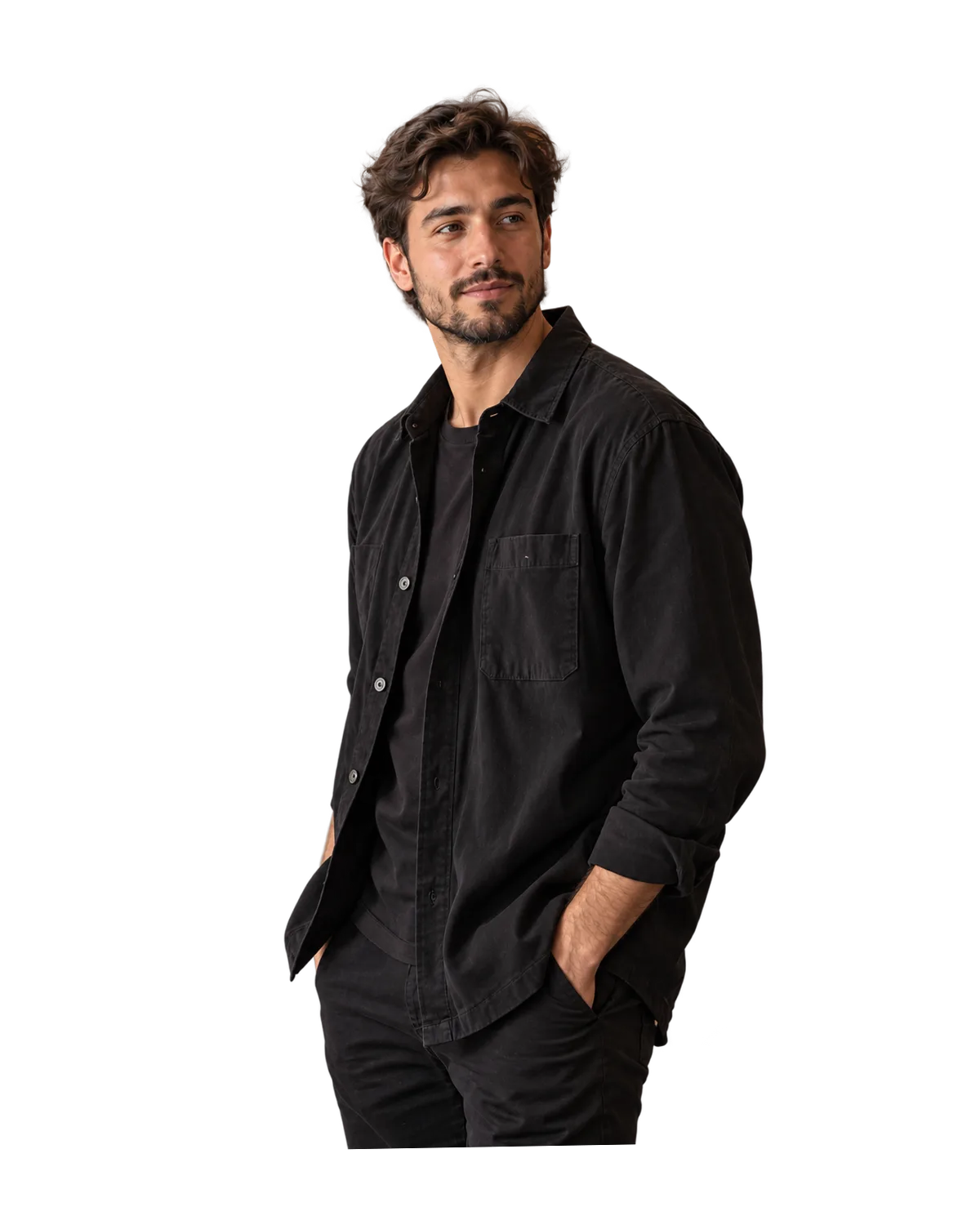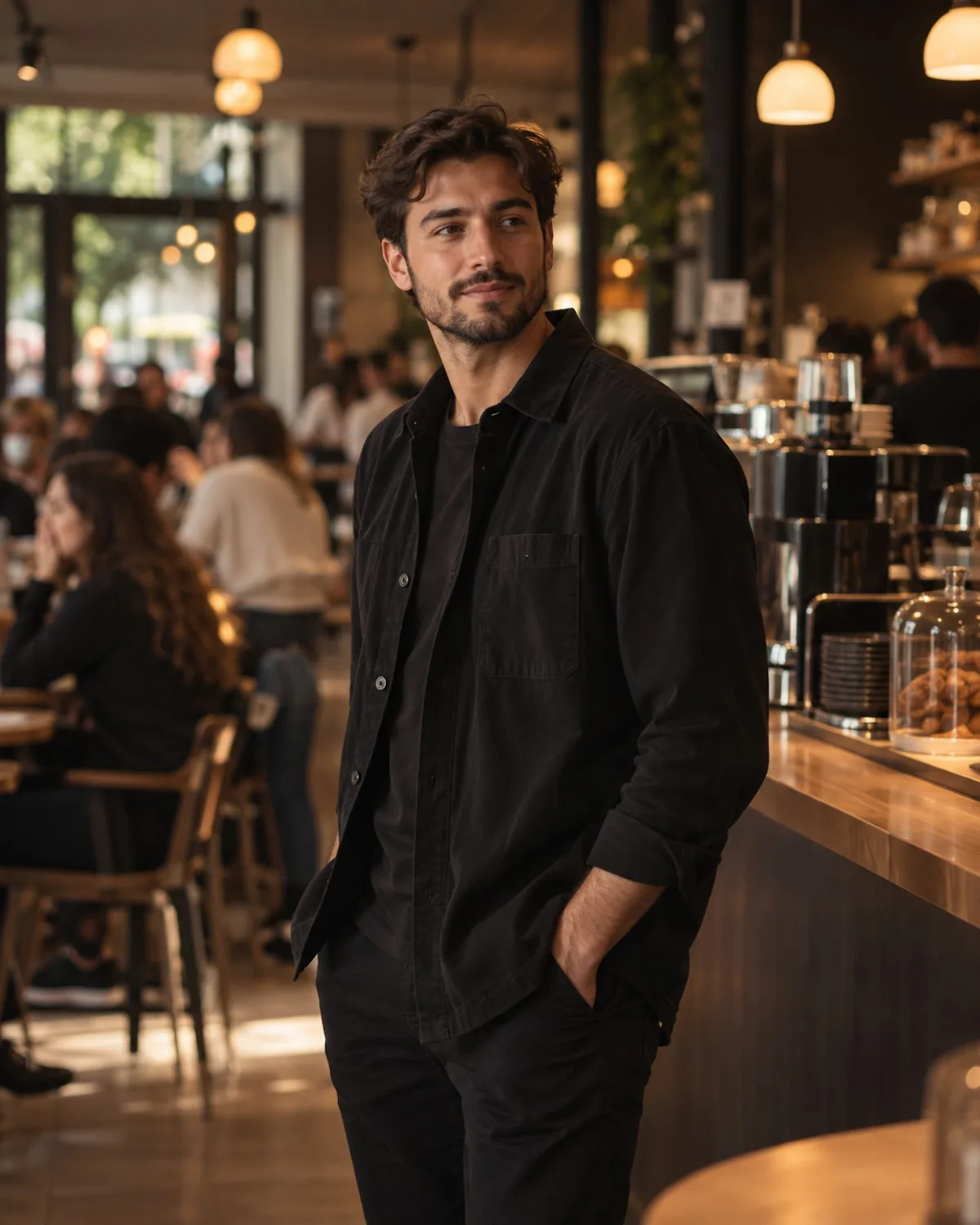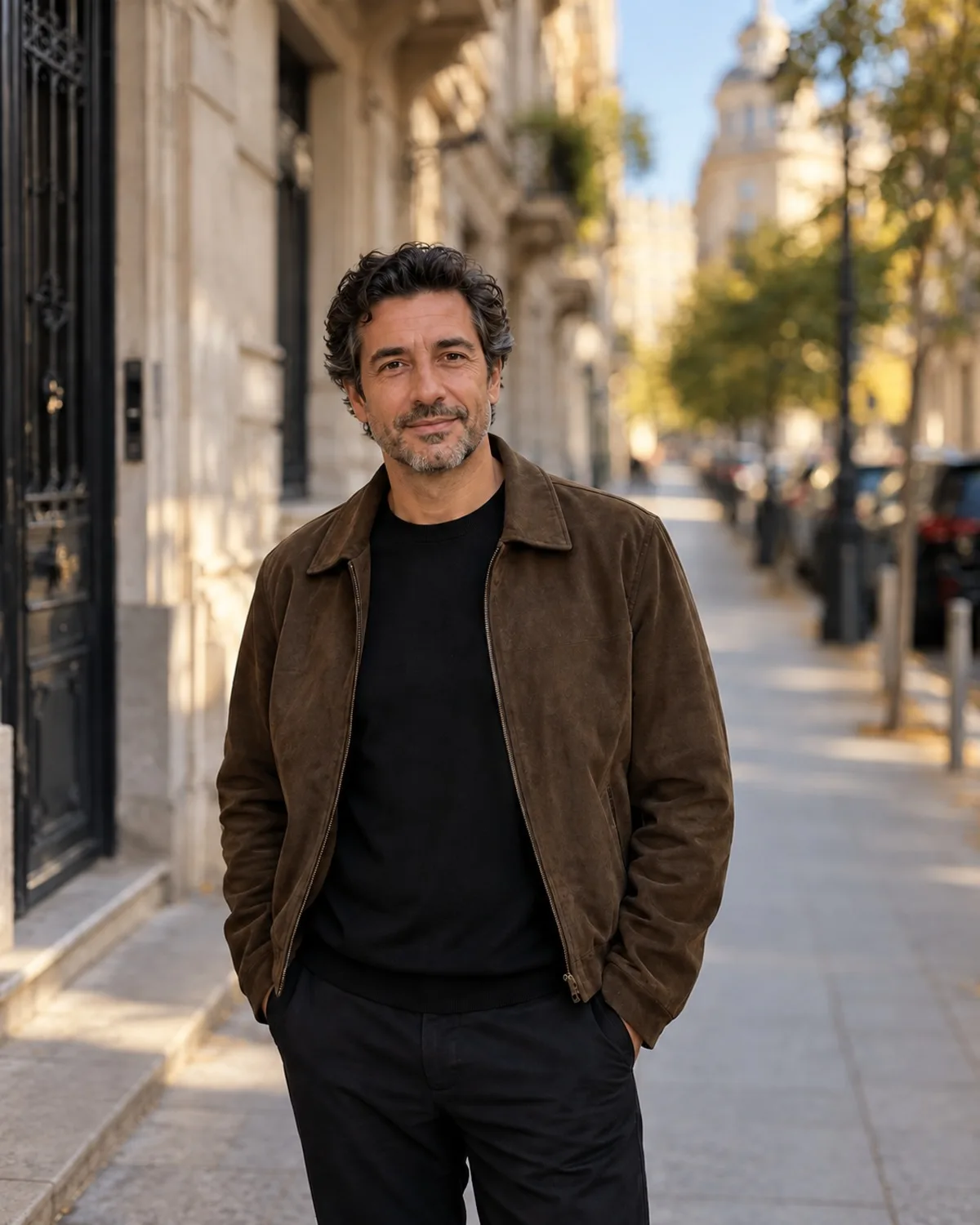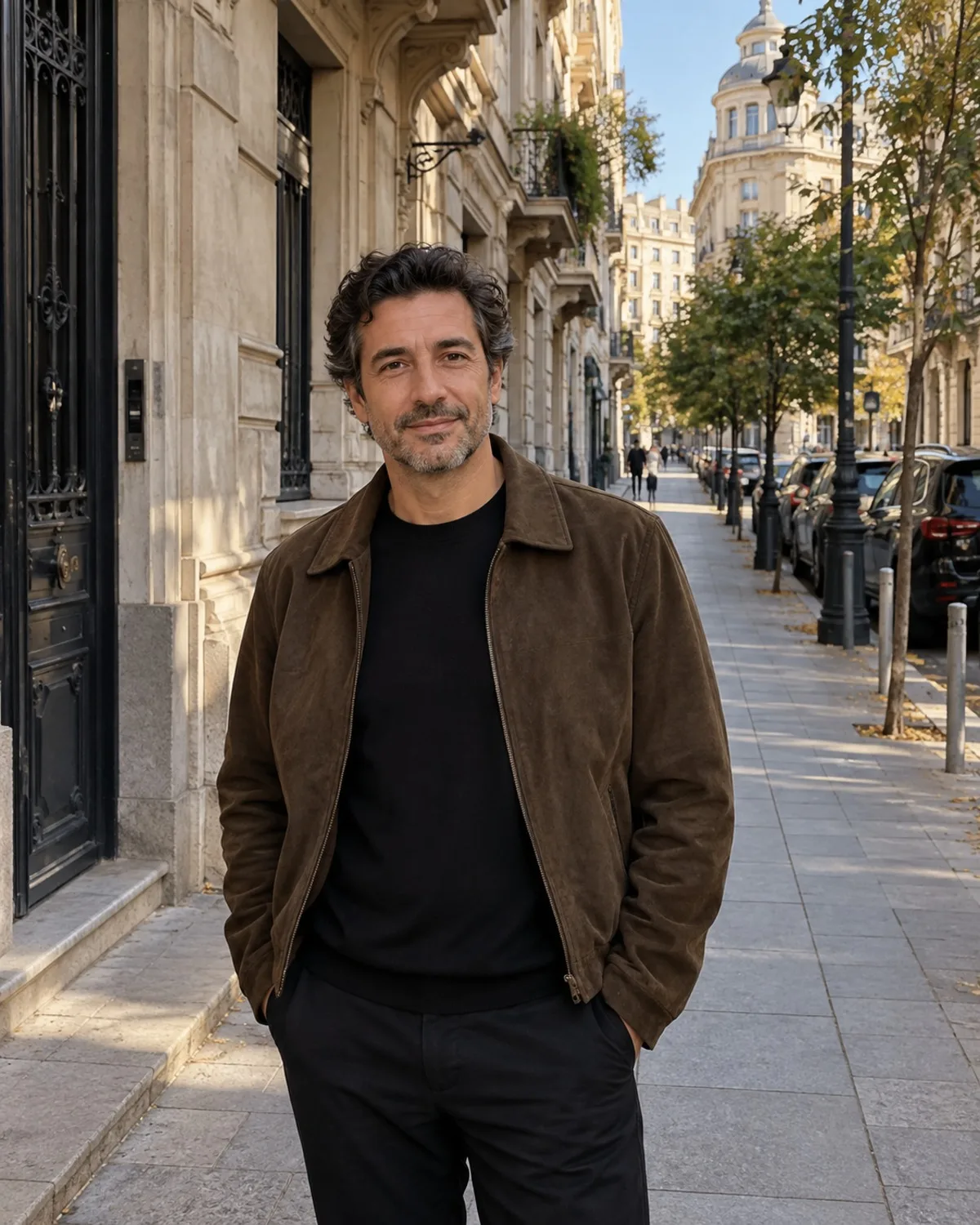

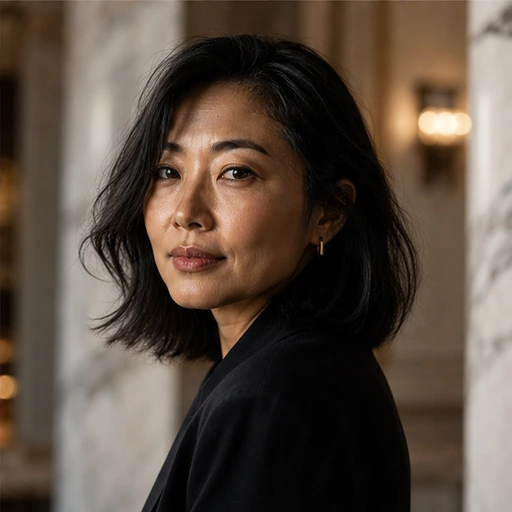
Choosing a backdrop that fits
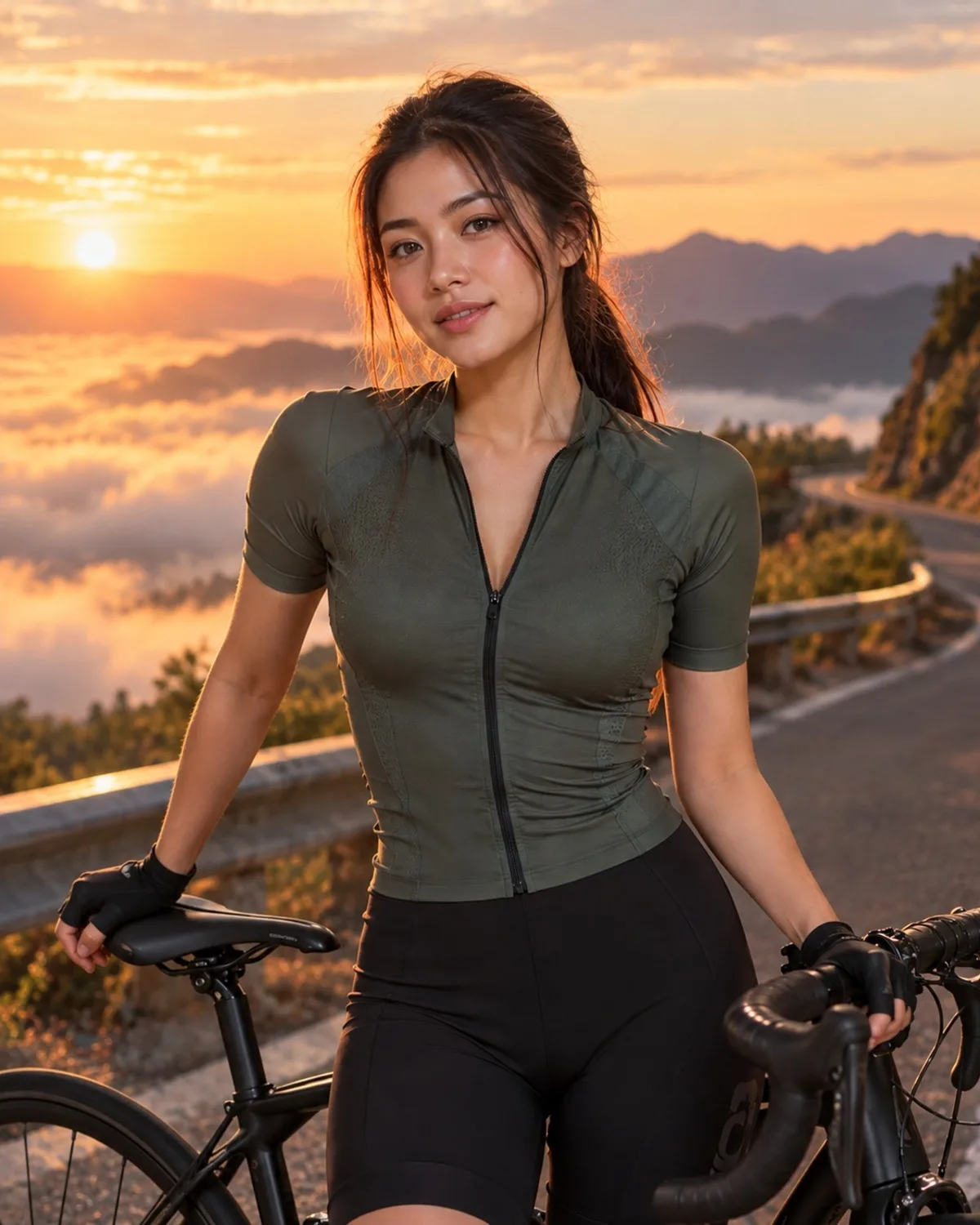
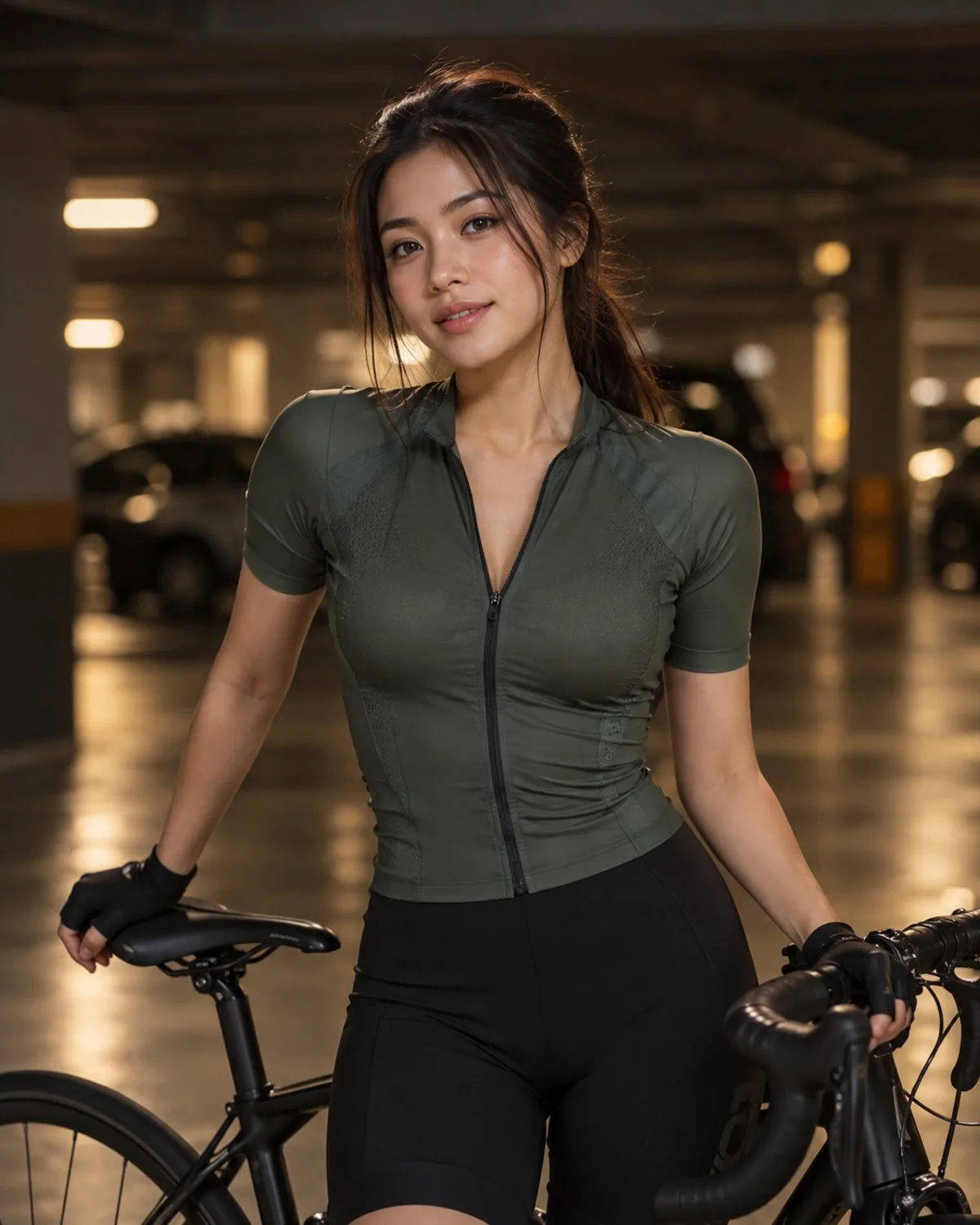
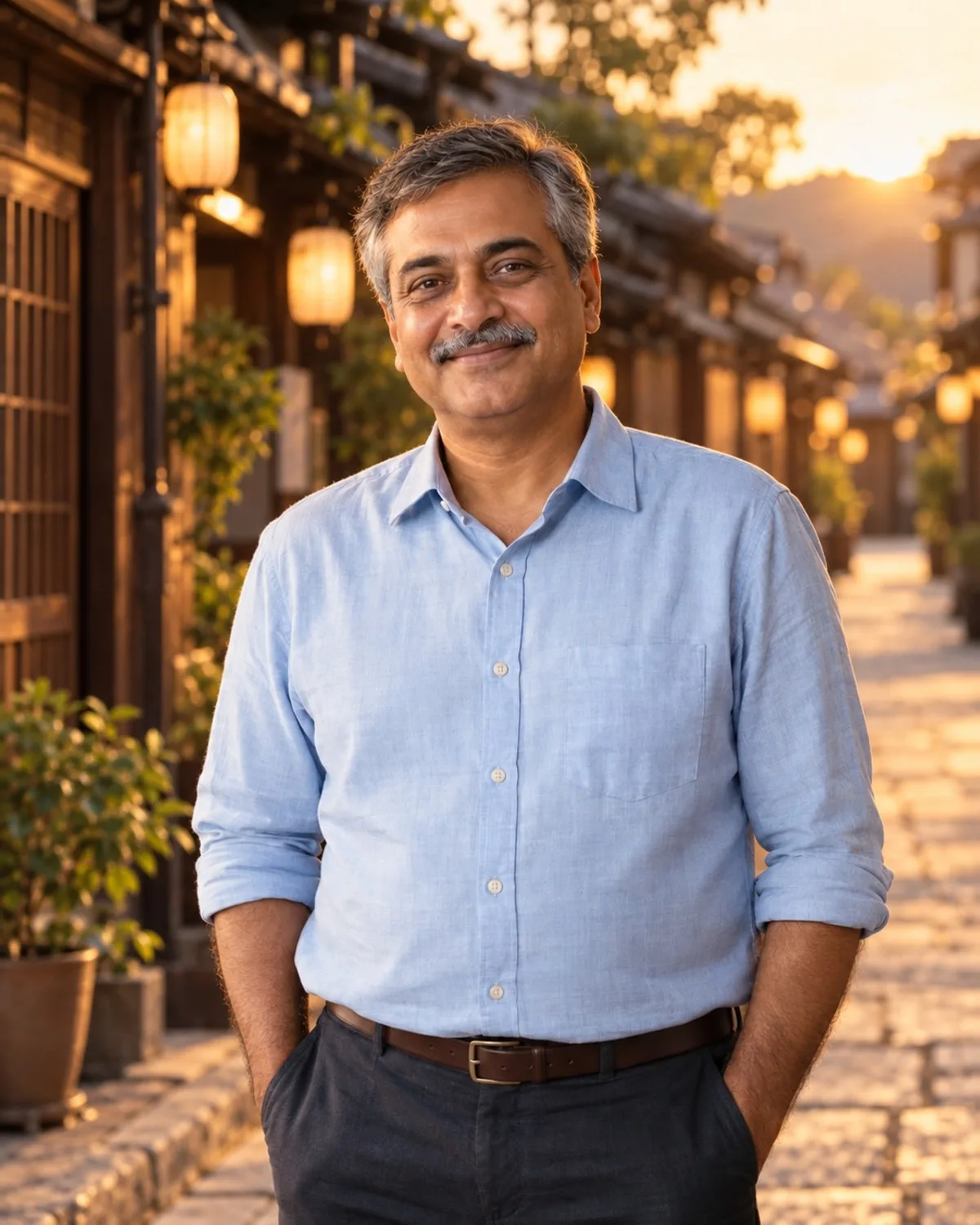
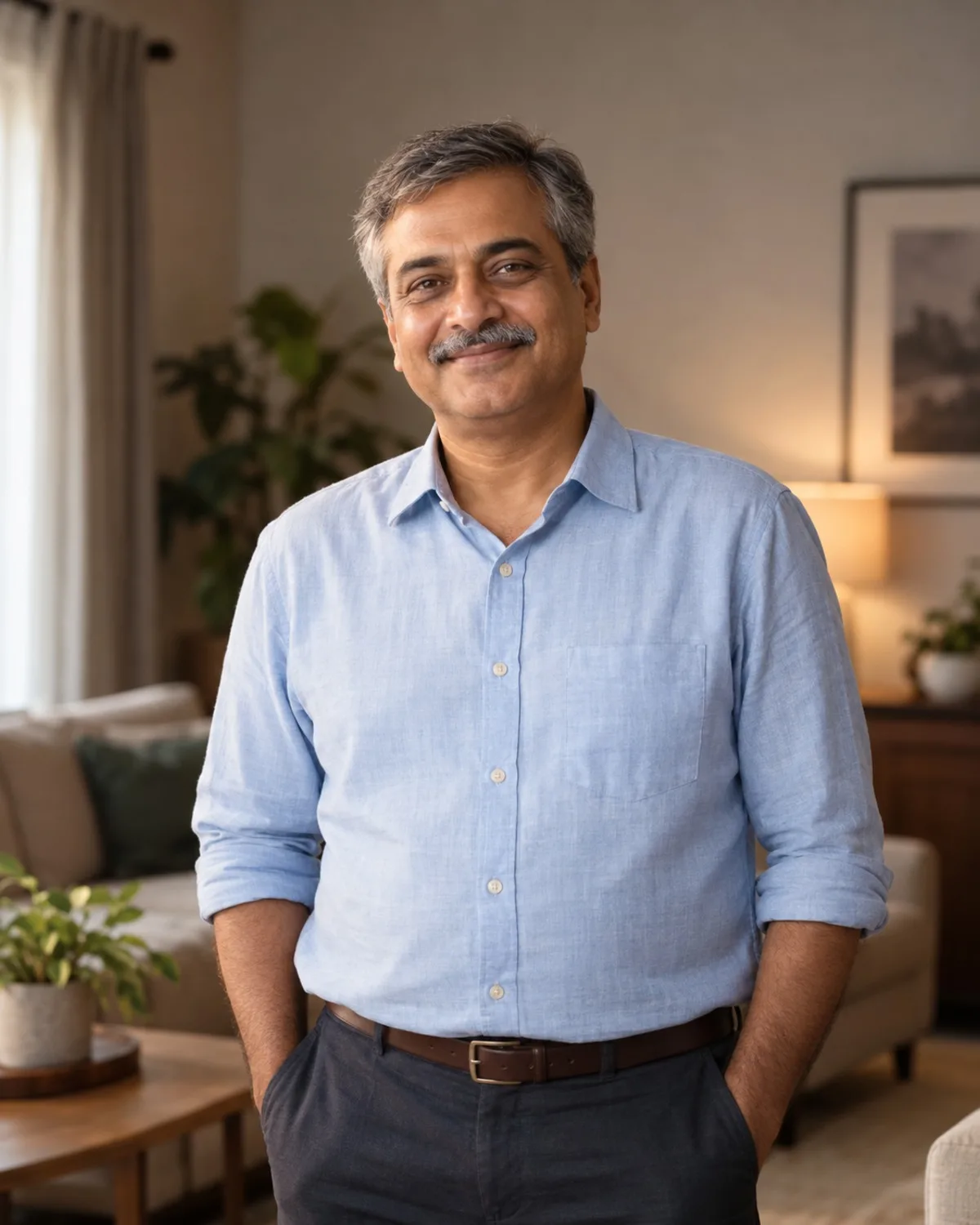
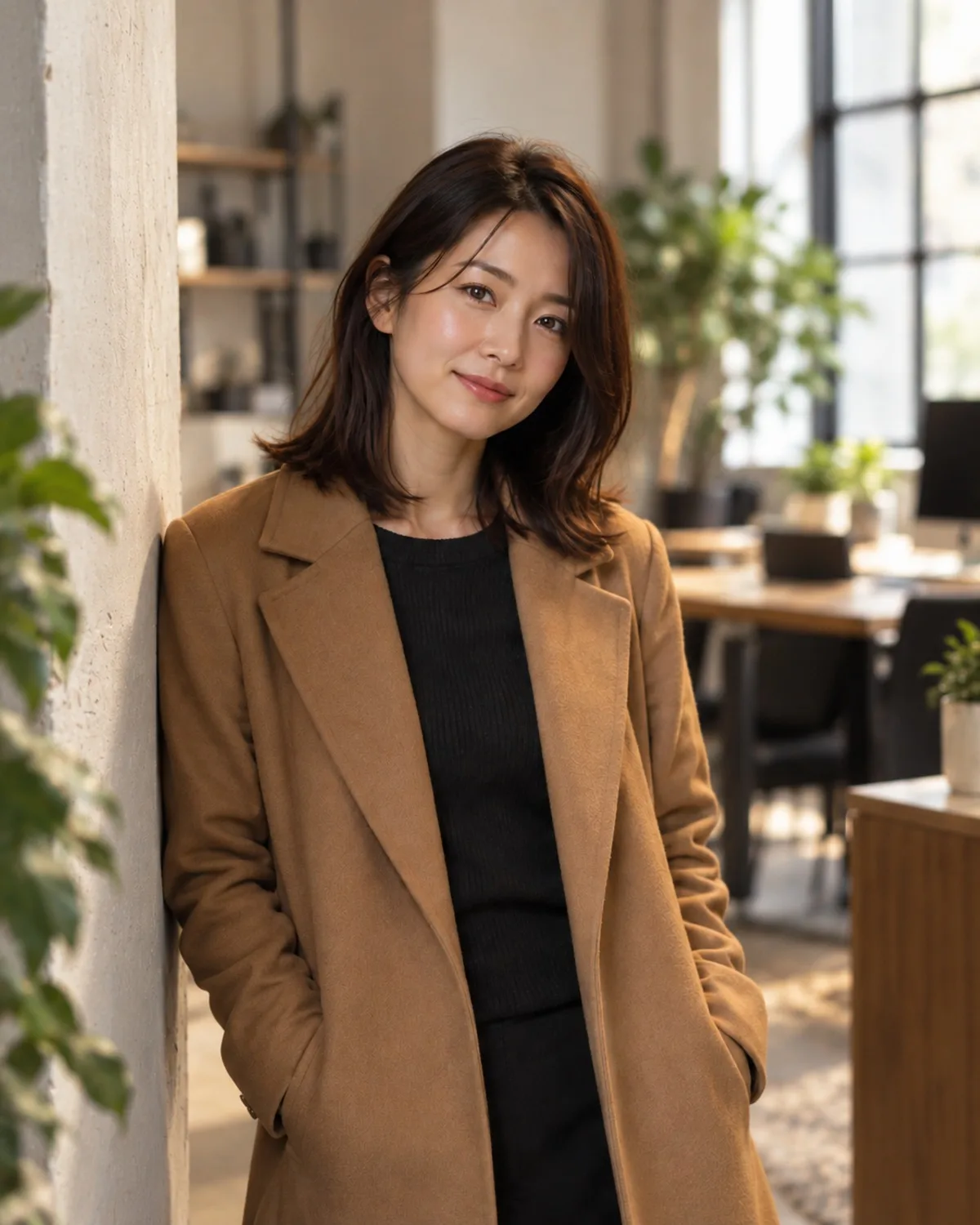
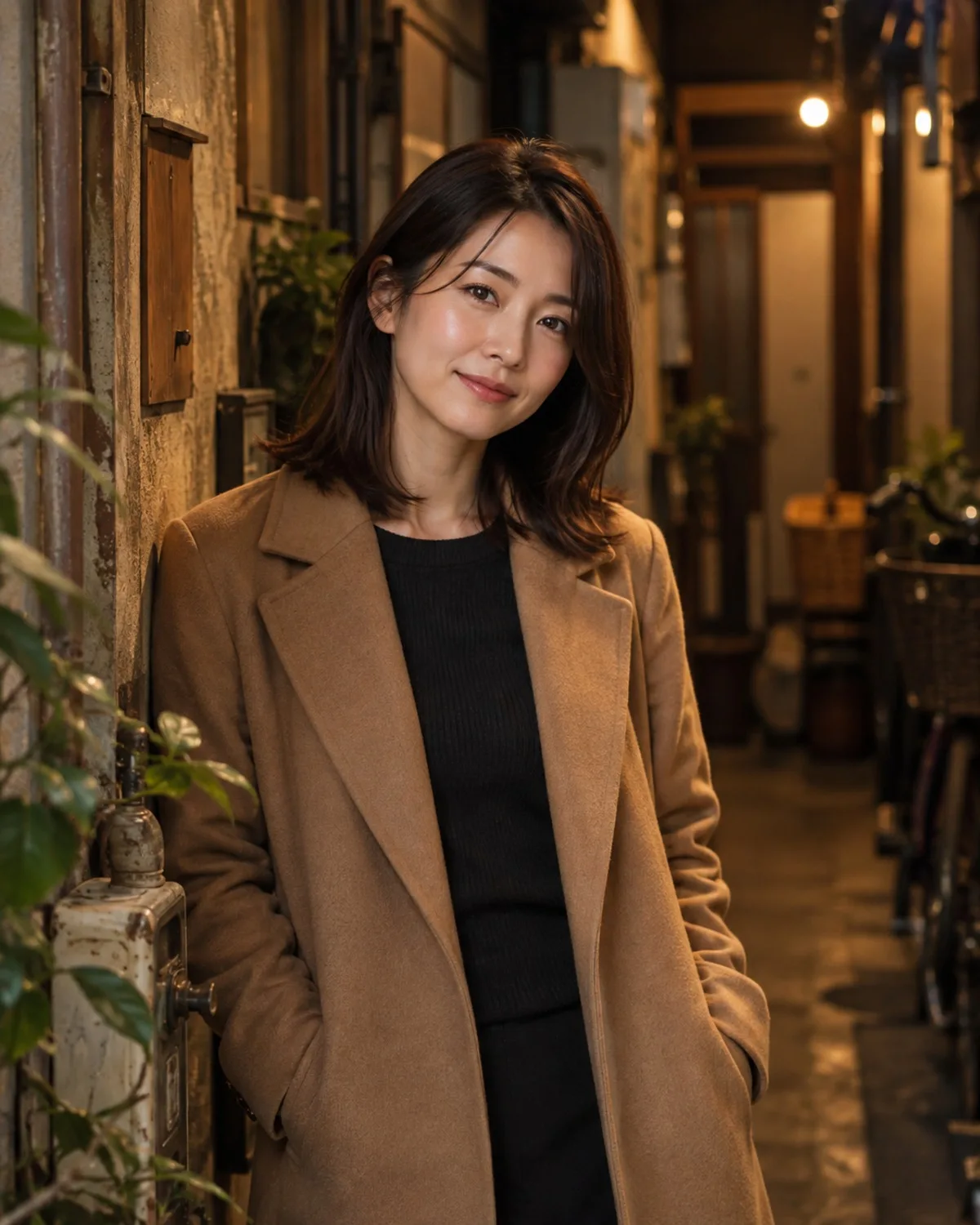
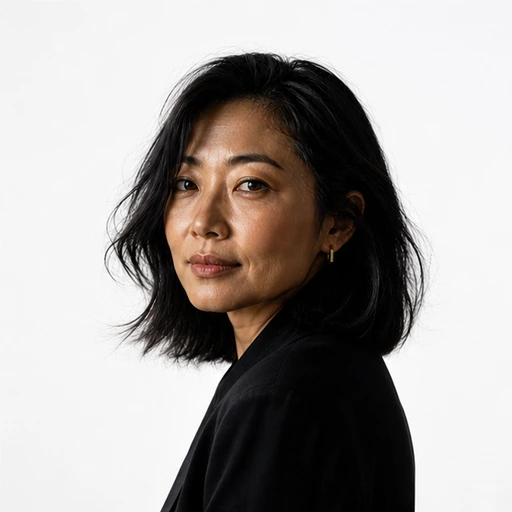
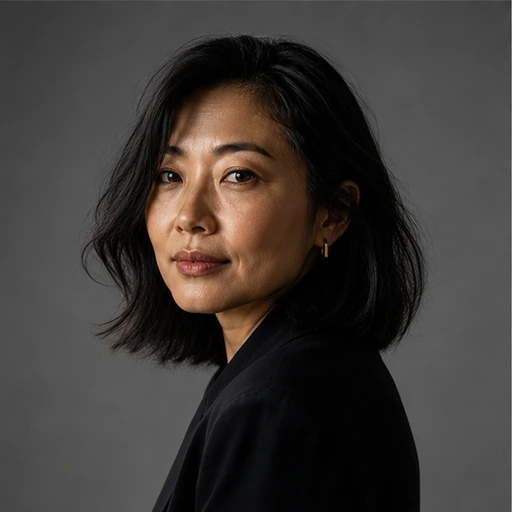
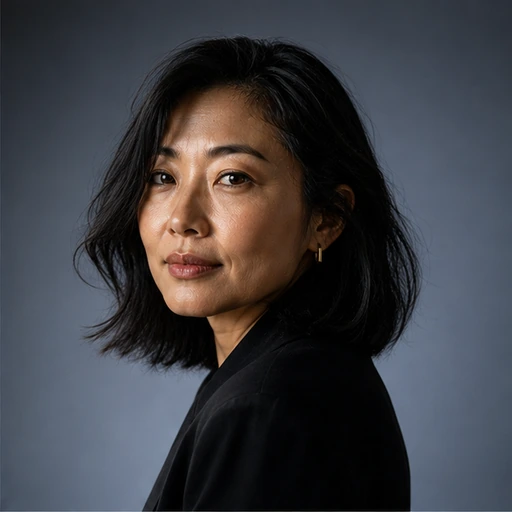
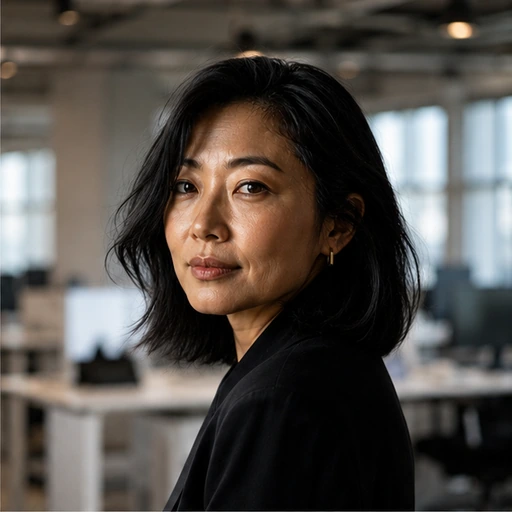
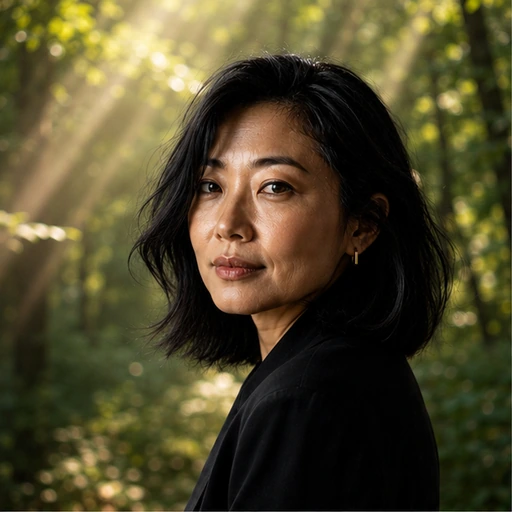
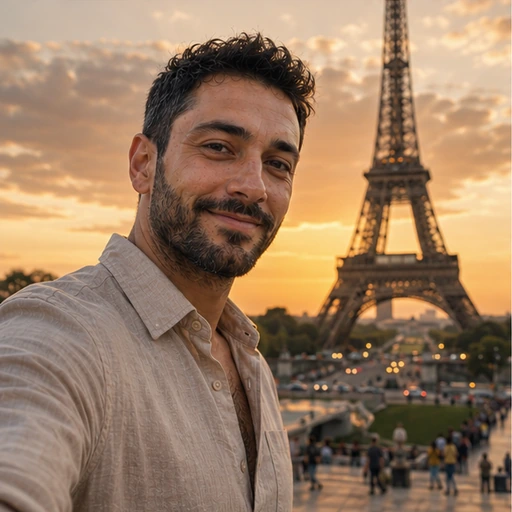
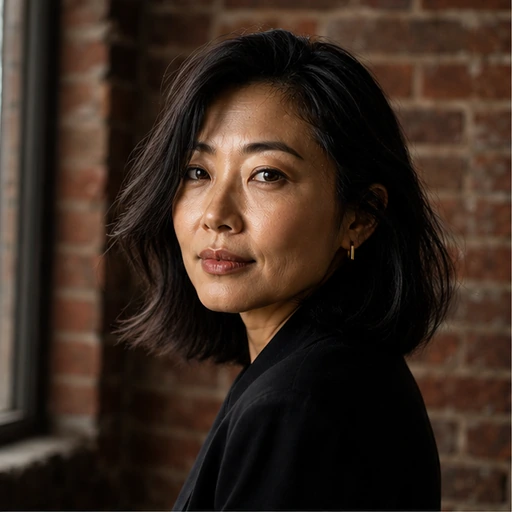
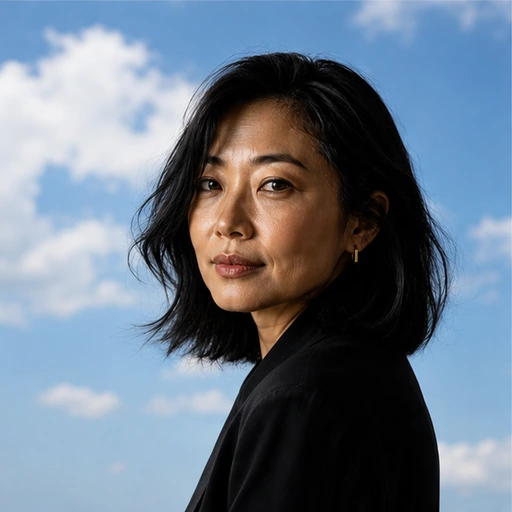
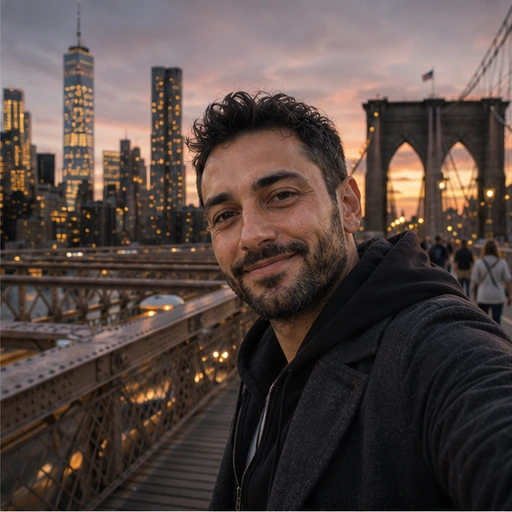
A new background is believable when it matches the photo you already have. If you were lit softly from the front, a studio or office backdrop with soft light matches well. If you were lit by strong sun from one side, a bright outdoor setting like Beach or Nature fits better than a dim interior. The tool matches light direction for you, but starting close makes the result more natural.
For work photos, White Studio, Grey Studio, Modern Office and Bookshelf are the safest choices. For products, White Studio, Grey Studio, Colour Gradient and Marble Interior keep attention on the item. Bokeh Lights, Brick Wall and Sky add mood for social posts.
Writing a custom background
Describe the place, the light and the depth, for example a quiet library with warm afternoon light, softly out of focus. Mentioning focus helps: a softly blurred backdrop looks like a real photo taken with a portrait lens, while a perfectly sharp background behind a sharp subject can look pasted in.
Keep the description to the setting. The subject is kept from your photo, so there is no need to describe yourself.
Colour harmony helps, too. A backdrop in tones that complement your clothing looks intentional, while a background in the same colour as your top can make the outline hard to read. Grey Studio is a dependable choice when you are unsure.
Honest limits
The subject's pose and framing stay the same, so a tightly cropped head-and-shoulders shot will not become a full-body photo in a new place. Objects you are holding or touching that belong to the old scene, like a chair back or a railing, may stay or be partly removed. Very fine, wispy hair against a busy original background is the hardest edge to separate; a plainer original helps.
If you need atmosphere, not just a backdrop, Scene Relocation rebuilds the whole environment and its light around you.
Related tools
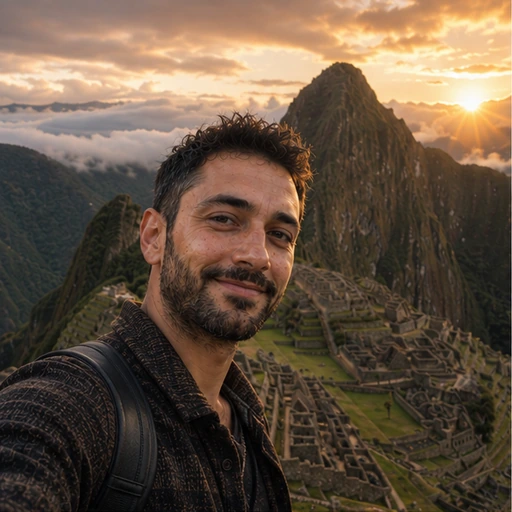
Background Removal gives you a transparent PNG for your own layouts. AI Bokeh Effect keeps your real background and just softens it. AI Travel Mode places you in well-known destinations as a creative image.