How to Get an AI LinkedIn Headshot From 1–3 Selfies
Turn one to three selfies into a polished LinkedIn headshot with AI: which photos to use, which look to pick, and how to check the result before posting.
By Alperen Ciftlikci6 min read
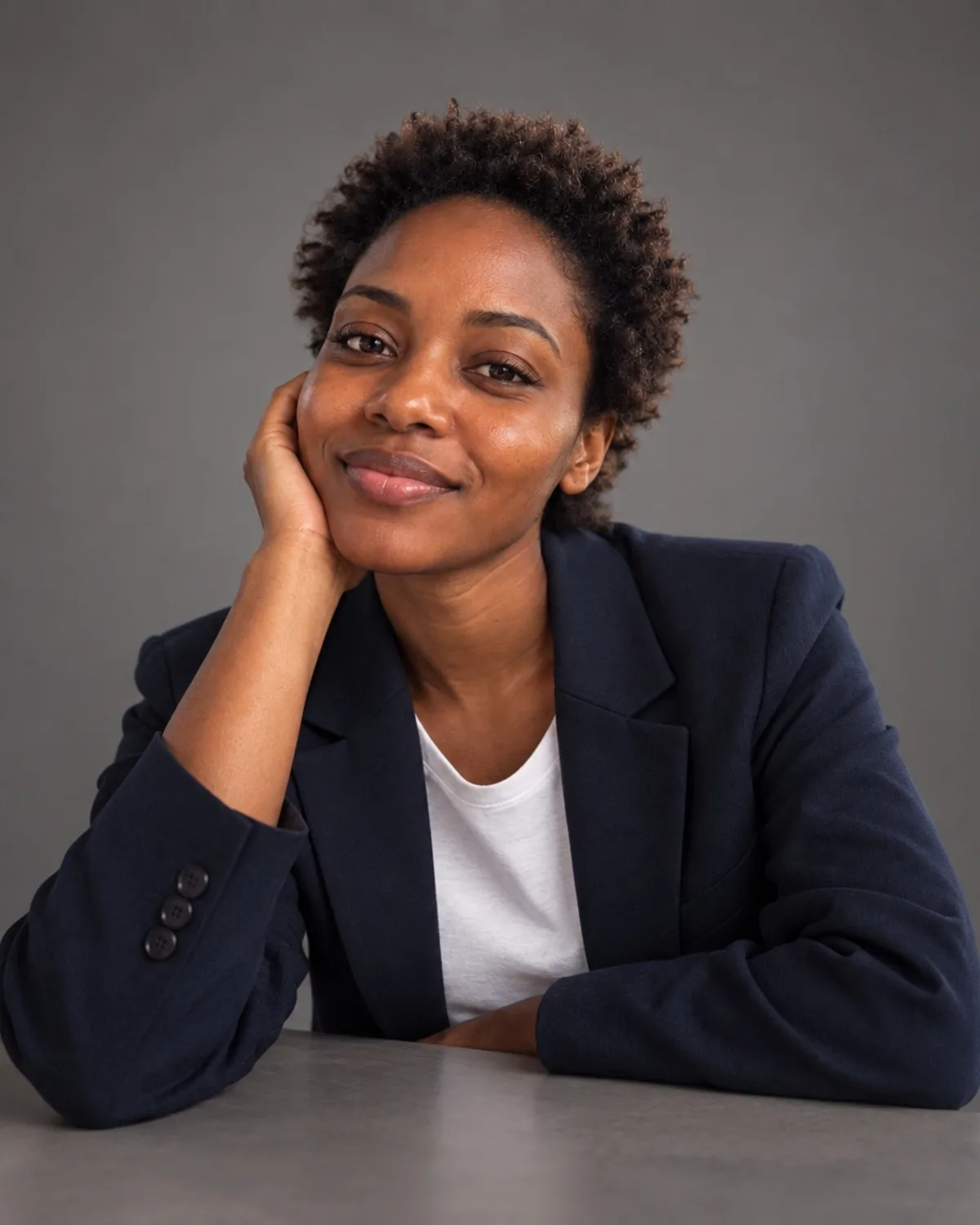
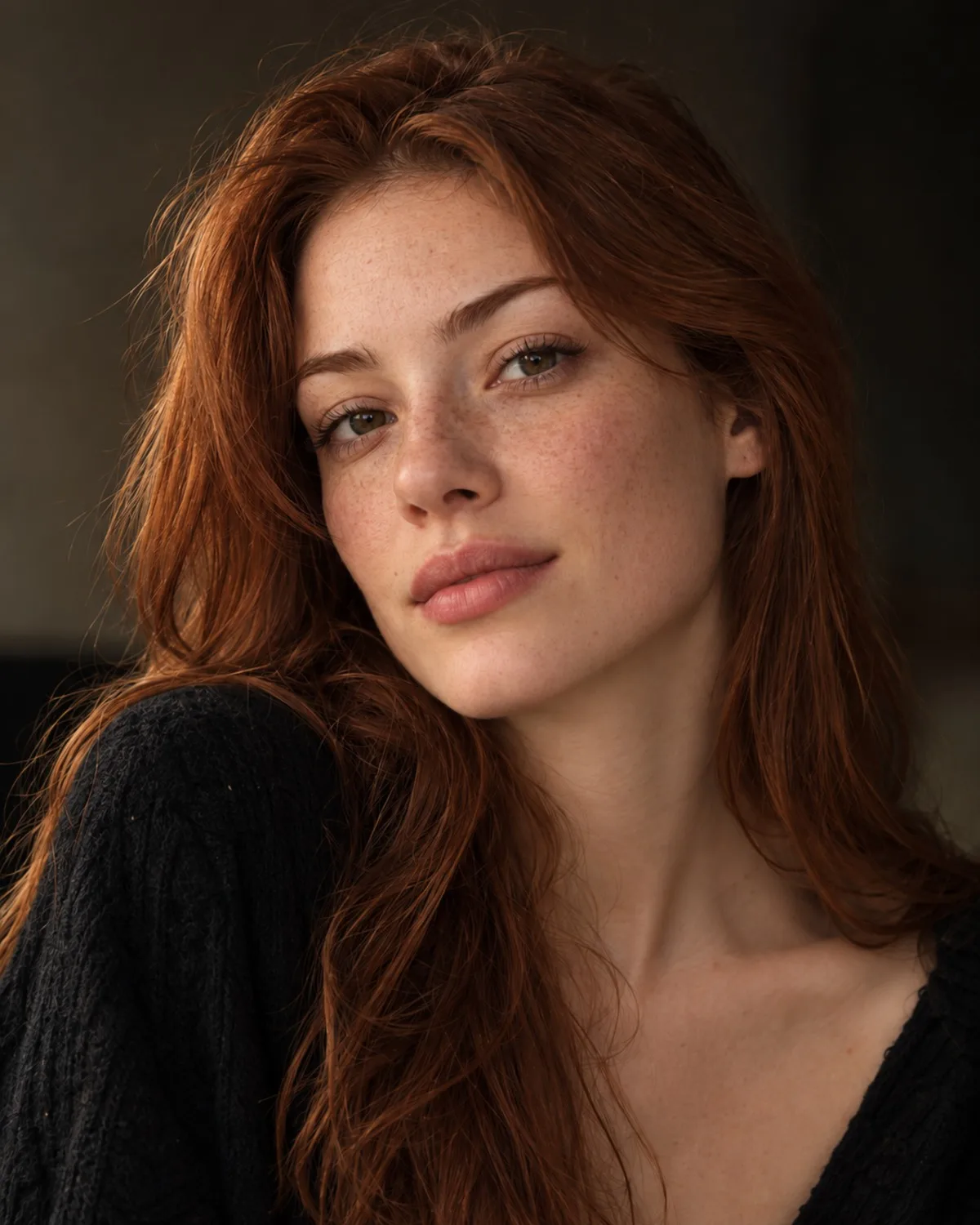
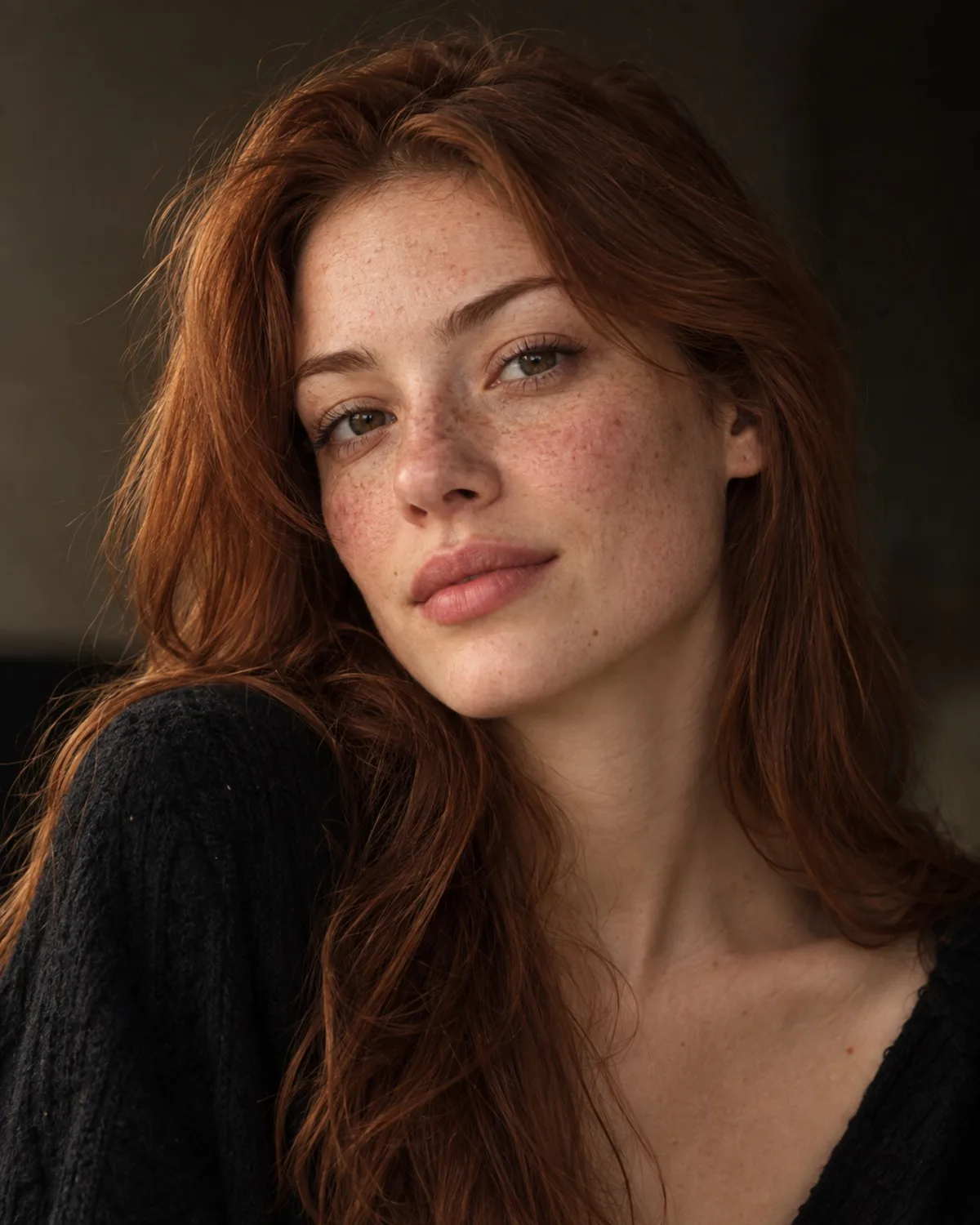
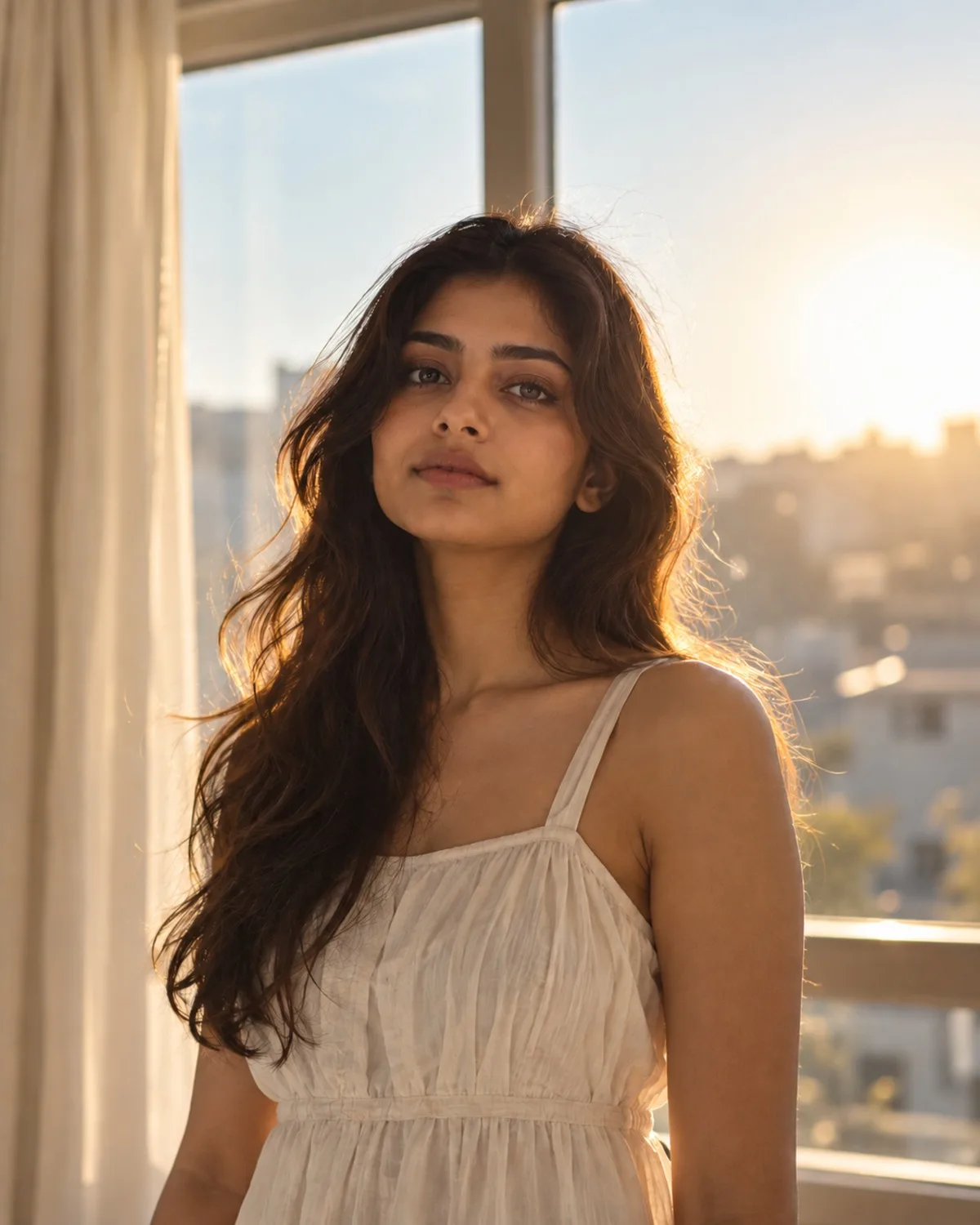
You can get a professional LinkedIn headshot with AI by uploading a clear, front-facing selfie and choosing a business look: the AI changes the clothing, backdrop and lighting while keeping your face, skin tone and expression. With Photogenic AI you have two routes. The single-photo Professional Headshots tool gives you one headshot per credit, and the AI headshot pack turns 1–3 selfies into 10 headshots in 10 different looks for a one-time $14.99.
This guide covers which route to choose, how to prepare your selfies, and how to judge whether the result is ready for your profile.
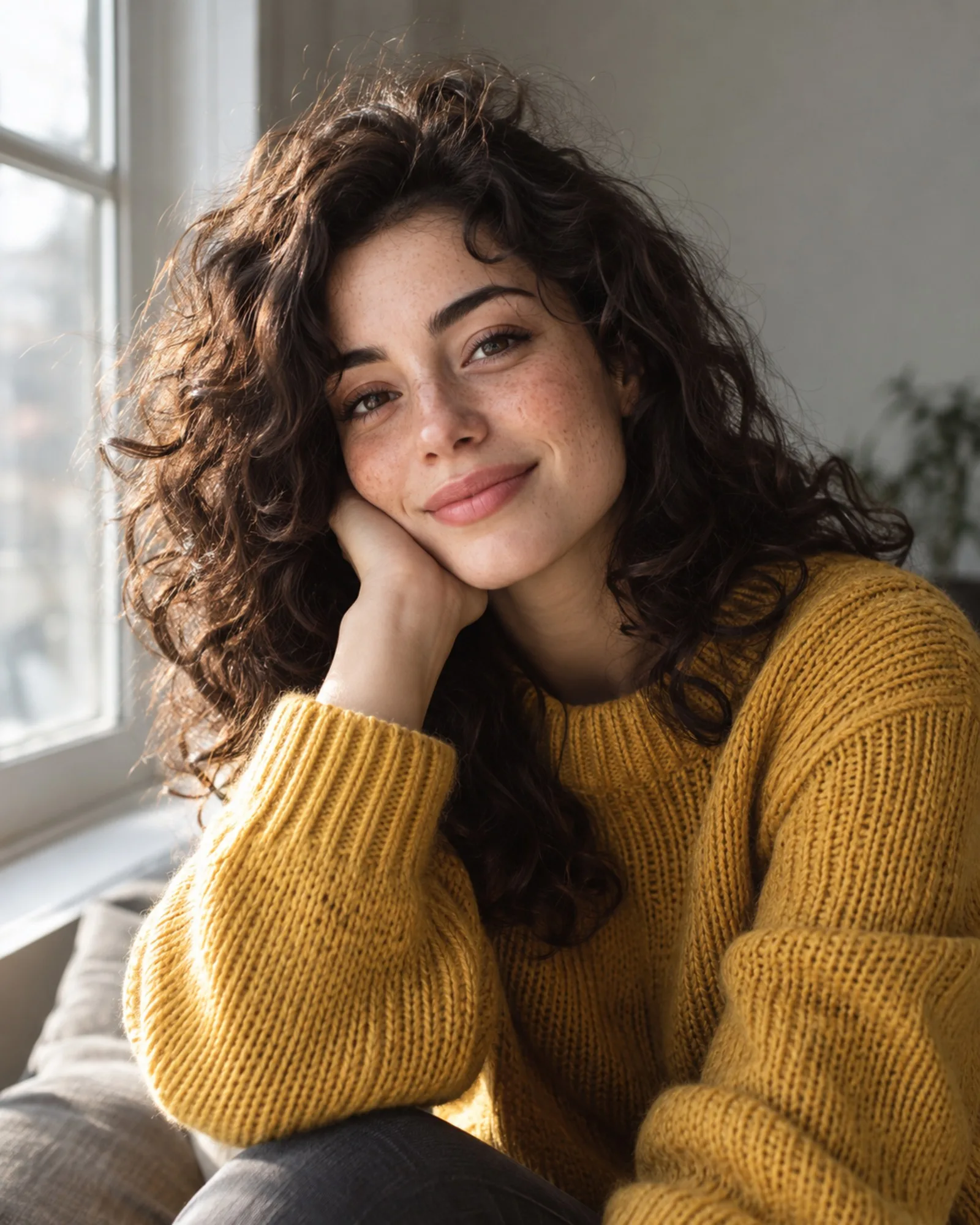
Why your LinkedIn photo matters
Your profile photo appears next to every comment, message and application you send. Recruiters and clients see it at thumbnail size long before they read your summary, so the basics count more than anything clever: a face that is easy to see, a calm background and an expression that looks approachable.
A traditional studio session gives you all of that, but it takes time to book. An AI headshot is a practical middle ground when you need a polished, consistent photo today and you already have a decent selfie.
Single photo or headshot pack: which to choose
The single-photo tool
Professional Headshots works from one selfie. You pick one of ten styles, such as Corporate Navy, Classic Grey, Startup Casual, Executive or Outdoor Natural, or write your own description of the outfit and setting. Each result costs 1 credit, and new accounts get 3 free credits to try it. Results made with free credits carry a small watermark; paid credits give clean results.
This route suits you if you already know the look you want, or you want to test how the AI handles your face before spending more.
The headshot pack
The AI headshot pack is a one-time purchase with no subscription. You upload 1–3 selfies and receive 10 headshots, each in a different look, without a watermark. Results appear as they finish and are saved to your private Library, so you can leave the page while they are created.
The pack makes sense when you want options: a formal version for LinkedIn, a softer one for a personal website, and something in between for a speaker bio.
Step by step: from selfie to profile photo
- Choose your best selfie. Face the camera, keep your head level and make sure both eyes are in focus. Our guide to the best selfies for AI headshots goes into detail.
- Fix obvious problems first. If the photo is dark or backlit, run it through Lighting & Shadow Fix before anything else. The AI keeps your real features, so a clearer input gives a clearer result.
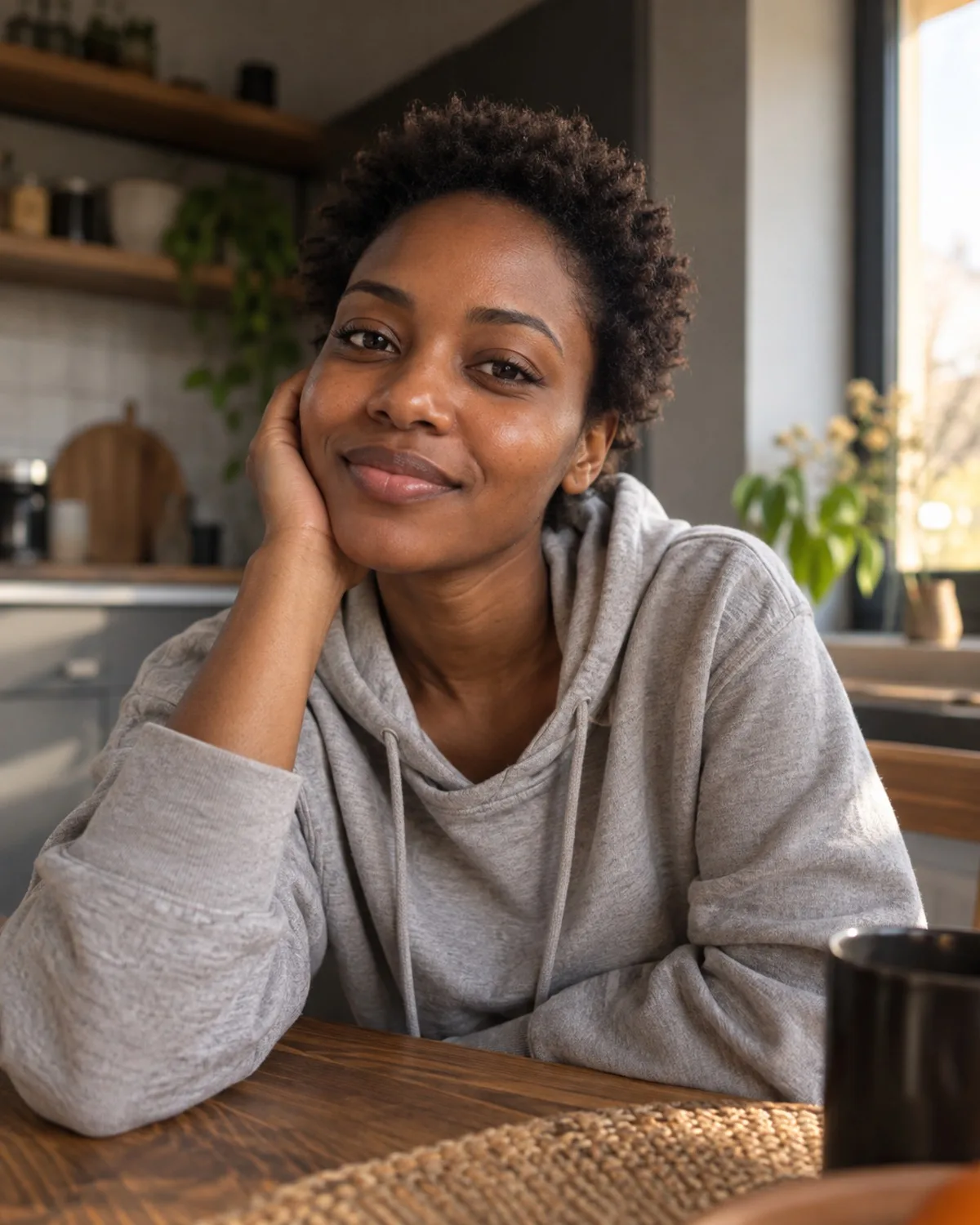
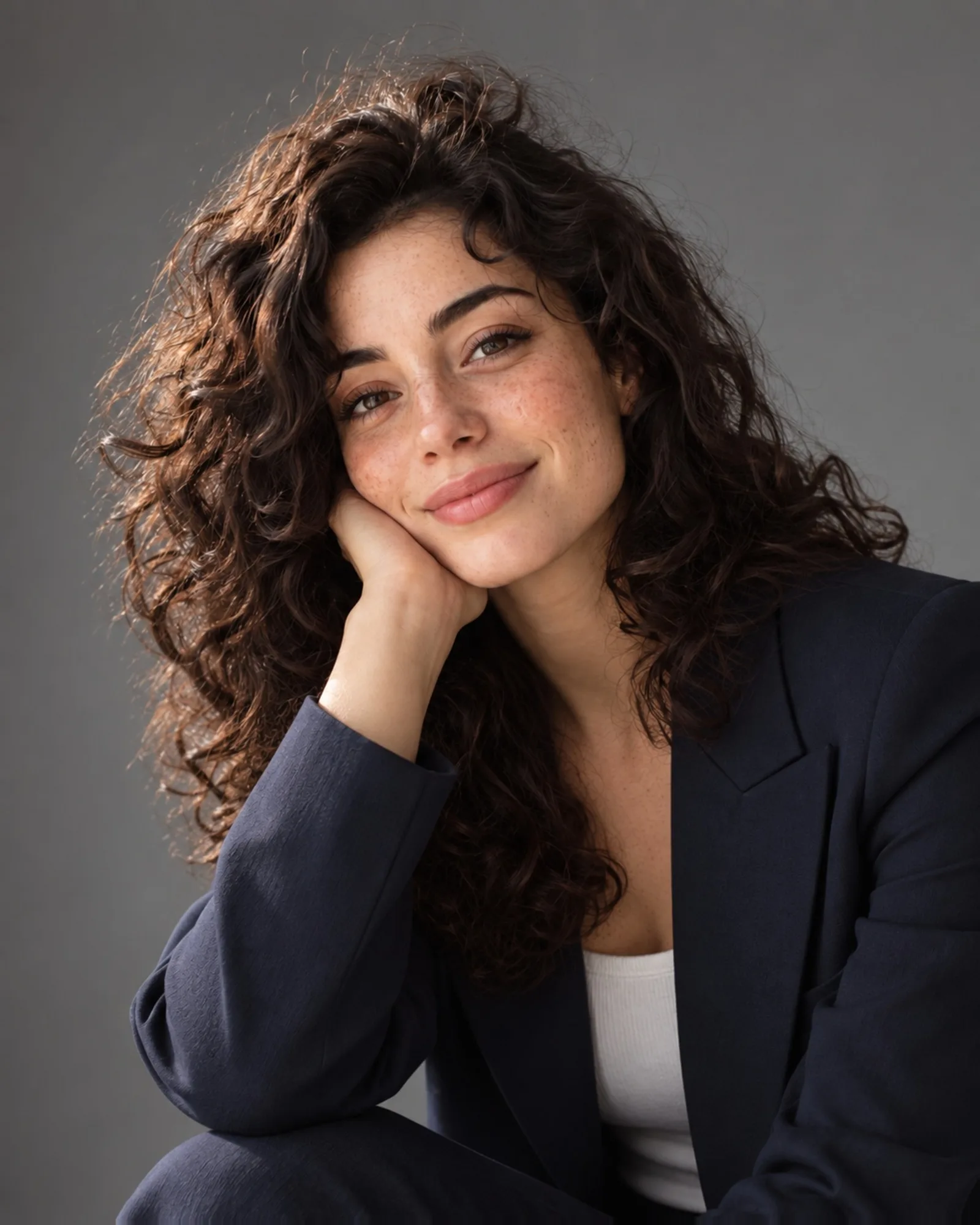
- Pick a look that matches your field. A navy suit reads as finance or law; an open collar and a lighter backdrop read as tech, design or consulting. If your industry is relaxed, Startup Casual or Outdoor Natural can feel more honest than a full suit.
- Generate and compare. Look at the result at full size and at thumbnail size. A headshot that looks great large can feel busy when it is a small circle on a feed.
- Download and crop for LinkedIn. LinkedIn shows your photo in a circle, so leave a little space above your head and keep your face near the centre.
Choosing a look that fits your industry
There is no single correct LinkedIn style, but a few rules of thumb hold up well:
- Conservative fields (law, finance, healthcare administration): dark jacket, plain grey or navy backdrop, even lighting.
- Tech, product and startups: smart-casual clothing, lighter backdrop, slightly warmer light.
- Creative work: a coloured or textured background is fine, as long as your face is still the clearest thing in the frame.
- Client-facing roles such as real estate or consulting: a friendly expression matters more than the outfit.
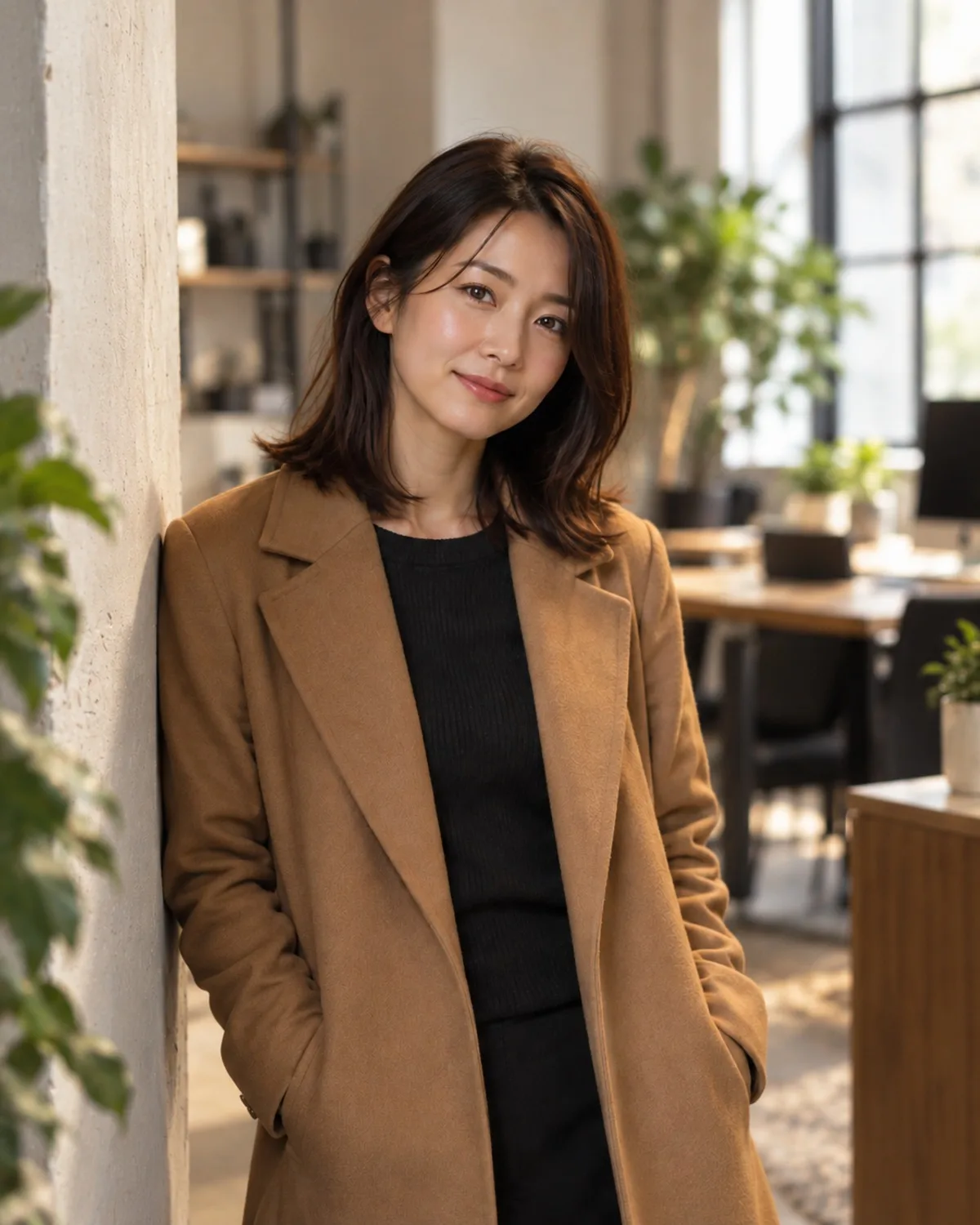
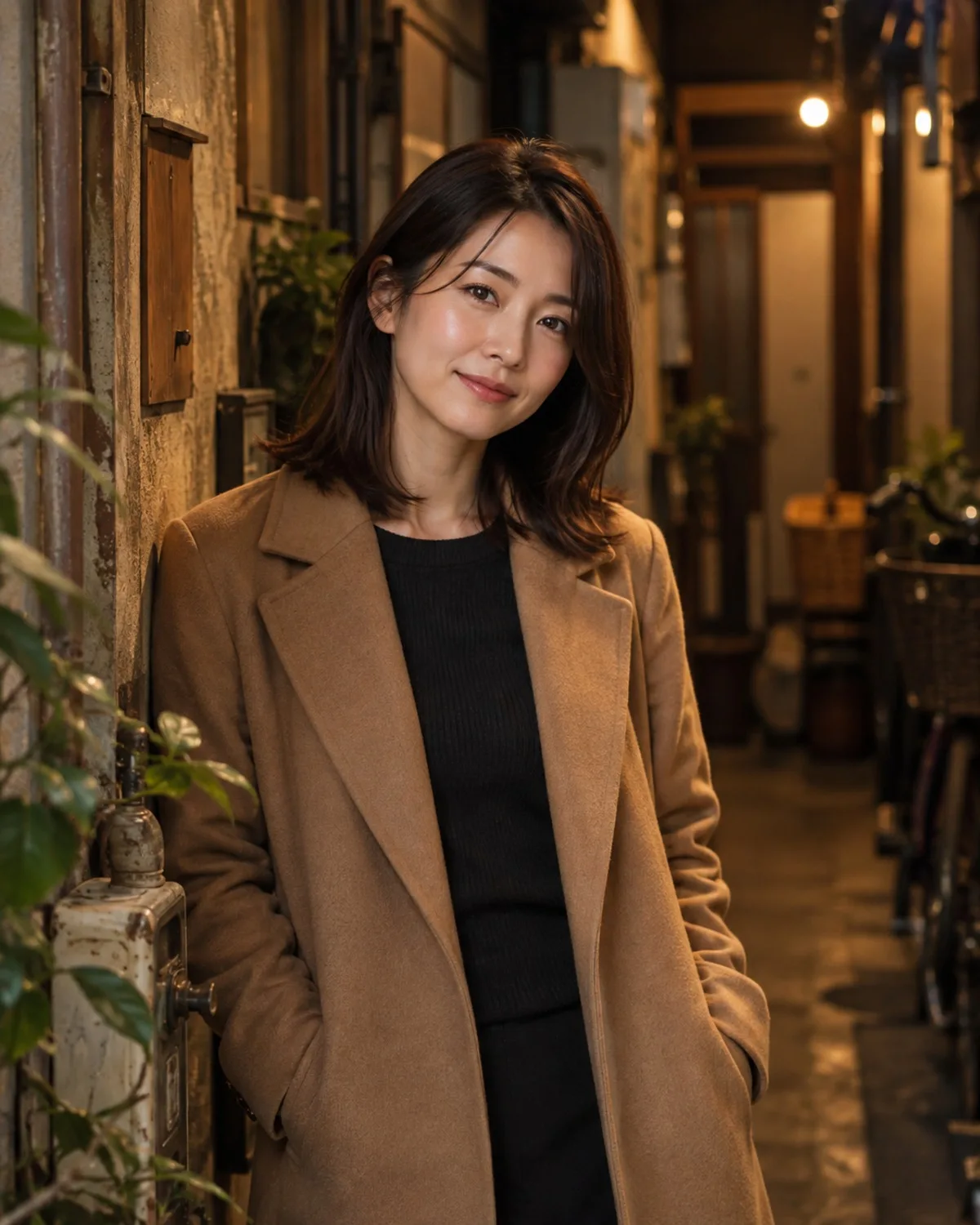
If you already like your photo but the room behind you is messy, you may not need a new outfit at all. Background Replacement swaps only the backdrop, for example to a white or grey studio or a modern office, and leaves you untouched.
Common mistakes to avoid
- Using a heavily filtered selfie. Beauty filters smooth away the detail the AI needs to keep you recognisable.
- Sunglasses, hats or hands near the face. Anything covering your features makes the result less like you.
- Group photos cropped down to one face. Low resolution and stray shoulders lead to weaker results.
- Over-retouching. If you want a cleaner look, Face Retouching evens skin tone and softens shadows while keeping natural texture. Stop there; a headshot that looks airbrushed undermines trust.
- Choosing a look you would never wear. People will meet you on video calls. Pick an outfit that reflects how you actually show up at work.
Honest limitations
AI headshots are a good fit for most profile needs, but they are not magic. The AI keeps your facial features, so it will not fix a blurry or very small photo on its own; start with the sharpest selfie you have. Unusual accessories, strong side lighting or extreme angles can produce results that do not quite look like you, and some looks will suit you better than others. Treat the first result as a draft and try another style or another selfie if something feels off.
You should also only upload photos of yourself, or of someone who has agreed to it. Photogenic AI does not create images that imitate real public figures.
FAQ
Are AI headshots good enough for LinkedIn?
For most people, yes, as long as the result still looks like you on a video call. Check it at full size and at thumbnail size, and choose a look that matches how you present yourself at work. If anything about your face looks different, try another selfie rather than posting it.
How many selfies do I need?
The single-photo tool needs just one. The headshot pack accepts 1–3 selfies; adding a second or third clear photo with slightly different angles or lighting gives the AI more to work with.
Can I use an AI headshot as a passport or ID photo?
No. AI headshots are made for professional profiles, CVs and websites. Official ID, passport and visa photos have strict biometric requirements, so get those from a compliant photo service.
Do I need an account to try it?
You can open the tool and prepare your photo as a guest. Sign-in with Google, Apple or an email link is only requested when you generate, and new accounts receive 3 free credits.