How to Remove People and Objects From Travel Photos
Remove tourists, photobombers and clutter from travel photos with AI: brush the selection, include shadows and get a natural background.
By Alperen Ciftlikci5 min read
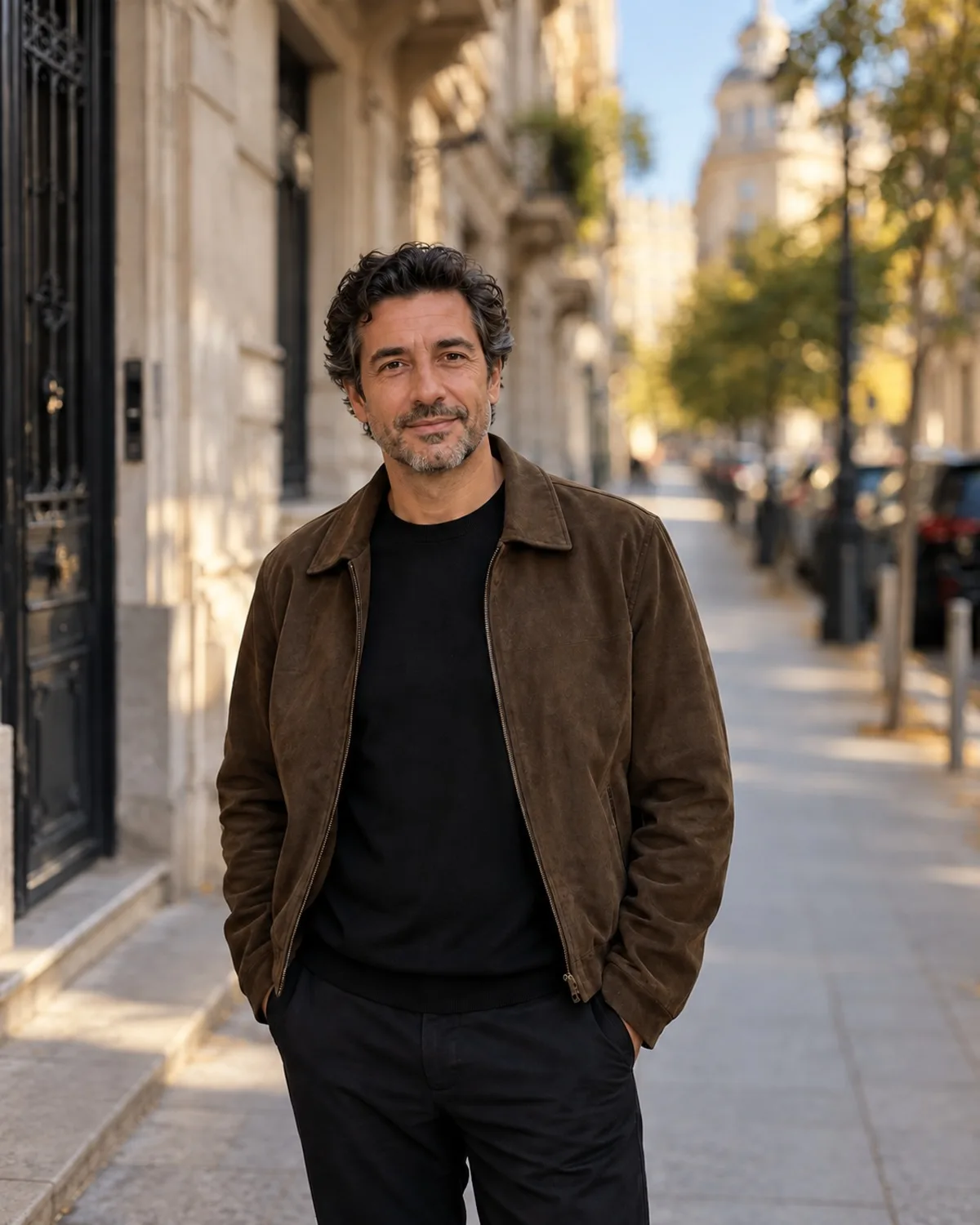
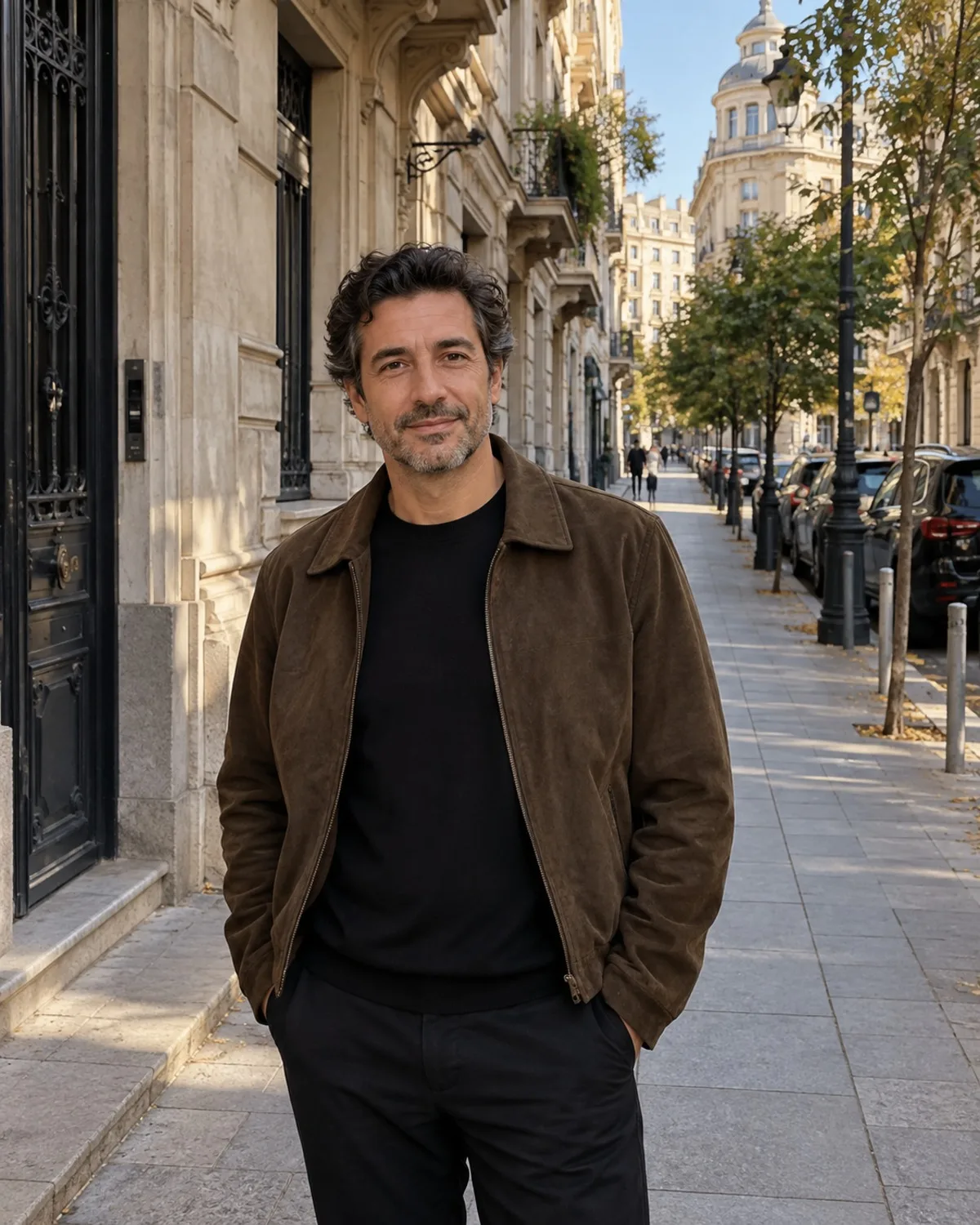
To remove a person or an object from a photo, brush over it with an AI eraser and let the AI rebuild the background behind it. With Photogenic AI's Object Removal tool you paint over the stranger, sign or bin you want gone, including its shadow, and everything outside your selection stays exactly as it was.
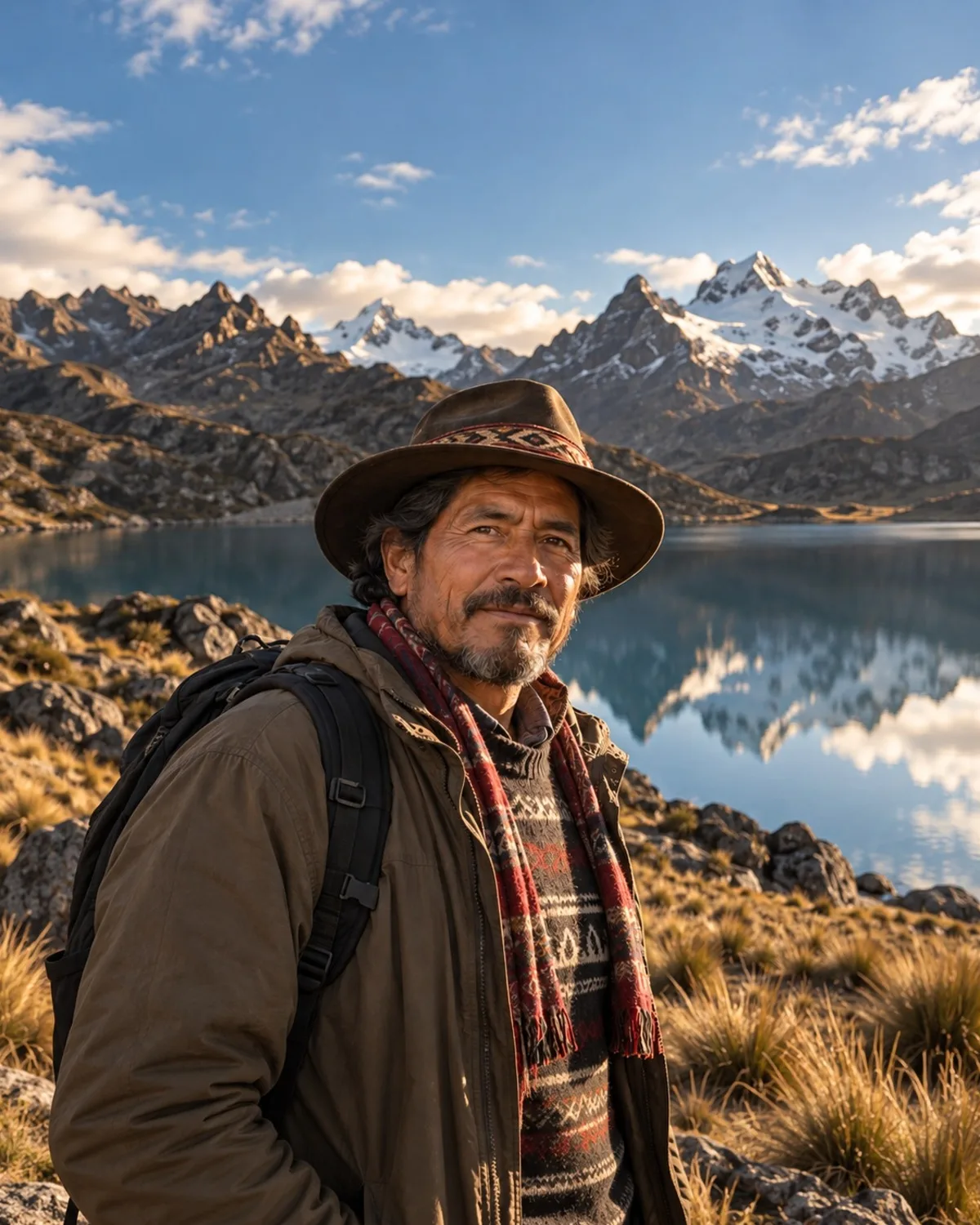
Travel photos are where this matters most: crowded landmarks, people walking into the frame, a rubbish bin in an otherwise perfect sunset. This guide shows how to get a clean, natural result.


How AI object removal works
When you paint over an area, the AI treats it as missing and fills it with what most plausibly belongs there, based on the surrounding scene: sand continues into sand, a wall pattern continues across the gap, the horizon carries on. Nothing outside your brushed area is touched.
That means the quality of your selection matters more than anything else.
Step by step
- Open Object Removal and upload your photo. You can do this as a guest; sign-in is only requested when you generate.
- Brush over everything you want gone. Cover the person or object fully, with a small margin around the edges.
- Include the shadow. A removed person whose shadow stays on the ground is a giveaway. Brush the shadow and any reflection too.
- Generate and compare the result with the original at full size.
- Refine if needed. If a trace remains, try again with a slightly larger selection.
Each generation costs 1 credit. New accounts get 3 free credits, and if a generation fails the credit is refunded automatically.
What to remove from travel photos
- Photobombers and passers-by in the background of portraits.
- Crowds at landmarks, a few people at a time.
- Litter, bins and traffic cones that clutter an otherwise clean scene.
- Signs, scaffolding and parked scooters in front of buildings.
- Power lines and cables across the sky.
- Stray objects at the edge of the frame, like a finger or a bag strap.
Tips for natural-looking results
Remove in passes
If there are many people in the background, do not try to erase a whole crowd at once. Remove the most distracting two or three first, check the result, then continue. Large selections give the AI more to invent and are more likely to look painted.
Brush generously, not wildly
Tight selections leave a ghostly outline of the original object. A small margin of a few pixels around the edge gives a cleaner blend. Very large margins, though, ask the AI to rebuild areas that were fine.
Watch for repeating patterns
Brick walls, tiles, railings and windows follow strict patterns. The AI continues them well over small gaps, but over a large area lines may not line up perfectly. Zoom in on those spots.
Think about what is behind
Removing a person from an open beach or sky is easy because the background is simple. Removing someone standing in front of a detailed statue or a crowd of other people is harder, because the AI has to guess what was hidden.
Shoot with removal in mind
A little planning on the day makes editing much easier later.
- Leave space around your subject. People who overlap your subject are much harder to remove than people standing a few steps away.
- Take several shots. Crowds move. Of five frames, one usually has fewer people in the way.
- Watch the edges of the frame. It is easier to step to the side than to rebuild half a building later.
- Keep your subject sharp. Removal works on the background; it cannot fix a blurry main subject.
When another tool is the better choice
Sometimes removal is not the most natural fix.
- Too many people to remove? Keep them but make them less noticeable with AI Bokeh Effect, which blurs the background by depth like a portrait lens.
- The subject is too close to the edge after cropping out clutter? AI Expand extends the canvas to a new aspect ratio.
- Shot into the sun? Lighting & Shadow Fix balances a backlit face against a bright sky.
For more ideas on improving holiday pictures, see travel photos.
Honest limitations
- The AI does not know what was really there. It invents a plausible background. For personal photos that is usually fine; for documents or evidence it is not.
- Large removals are harder. Removing someone who fills a third of the frame leaves a lot to reconstruct, and results can look soft or repetitive.
- People touching your subject (an arm around a shoulder, a hand on a table) are tricky, because the AI must also rebuild part of the person you are keeping.
- Respect the scene. Removing a stranger from your holiday shot is one thing; editing photos to mislead others about where you were or who was there is another.
FAQ
How do I remove a person from a photo?
Upload the photo to Object Removal, brush over the person including their shadow, and generate. The AI fills the area with a background that matches the surroundings, and the rest of the photo is left untouched.
Can I remove text from an image?
Yes, small signs and lettering can be brushed out like any object. Large blocks of text on a detailed background are harder to rebuild cleanly. Do not use the tool to remove watermarks or copyright notices from images you do not own.
Will the background look natural after removal?
On simple backgrounds such as sky, sand, grass or plain walls, usually yes. On detailed or patterned backgrounds, check the result at full size and try a slightly different selection if something looks off.
Can I remove several things at once?
You can brush several areas in one go, but for the most natural result remove the biggest distractions first and work in passes.